Test a Live Activity and a home-screen widget on iPhone
They are your app, shown where your app is not: the lock screen, the Dynamic Island, the home screen. One plain-language test starts one, adds the other and reads both.
Your app, outside your app#
A Live Activity puts "Arriving in 10 min" on the lock screen and in the Dynamic Island. A widget puts a number on the home screen. For a delivery, a ride, a score or a timer, these are the parts of the product people look at most.
They are also the parts with the least testing, because they are not inside the app. The lock screen and the home screen belong to the iPhone. To see a widget at all, somebody has to touch and hold the home screen, tap Edit, tap Add Widget, search for the app, pick a size and tap Add. Then check whether the number on it is today's number or last Tuesday's.
A widget showing stale data is one of the most visible bugs an app can have. It sits on the user's home screen all day, wrong.
The test#
Written as plain text and run on an iPhone with iOS 27:
Open System surfaces in the Phone section and tap Start delivery
(allow notifications if asked); verify the phone shows Order #1042
with Arriving in 10 min outside the app (a Live Activity on iOS,
an ongoing notification on Android), then go back to the app,
tap End delivery and verify Delivery: ended.
Then add the QA Lab widget to the home screen the way a person does
(touch and hold the home screen, then the widget picker),
open Taps in the app and tap the blue pad twice,
go to the home screen and verify the widget shows Taps: 2.
The app is QA Lab, our practice app. Start delivery starts a Live Activity for order #1042. Its widget shows the count from the Taps screen.
What happened: the Live Activity#
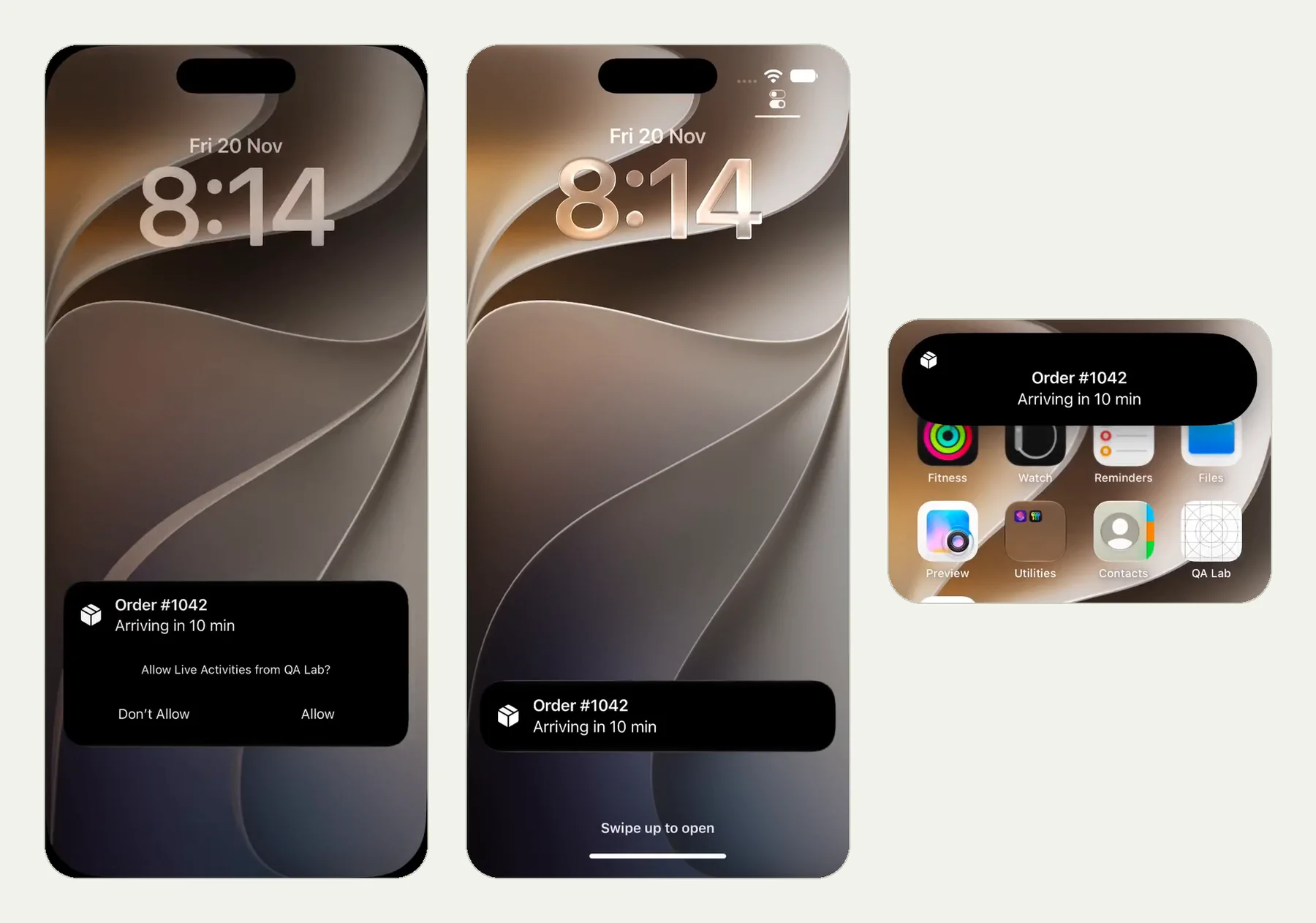
The picture at the top of this page shows three moments from the review video: the Live Activity on the lock screen with the iPhone asking "Allow Live Activities from QA Lab?", the same after Allow, and the Dynamic Island on the home screen. All three read "Order #1042 · Arriving in 10 min".
Nothing in those frames is the app. The tester left it, looked at the lock screen, answered the question the iPhone asked, confirmed the order was showing, then went back and ended the delivery. The app read "Delivery: ended".
What happened: the widget#
Then the long part. The tester went to the home screen, touched and held the wallpaper, tapped Edit, tapped Add Widget, searched for "QA Lab", chose it and tapped Add Widget, then Done. That is seven steps a person does with their thumb, and the run recorded each one.
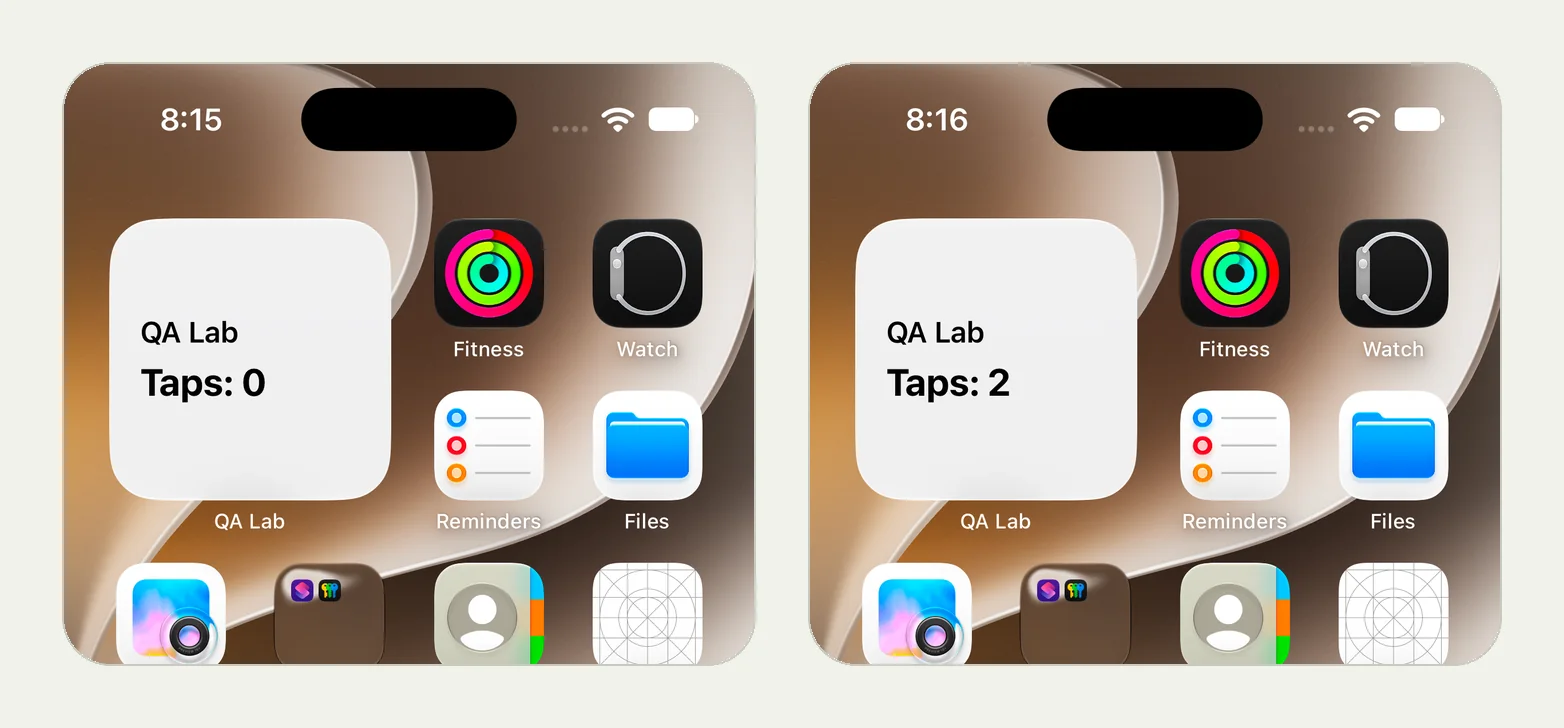
The widget started at "Taps: 0". The tester opened the app, tapped the blue pad twice, pressed Home, and read the widget: "Taps: 2". The widget had updated.
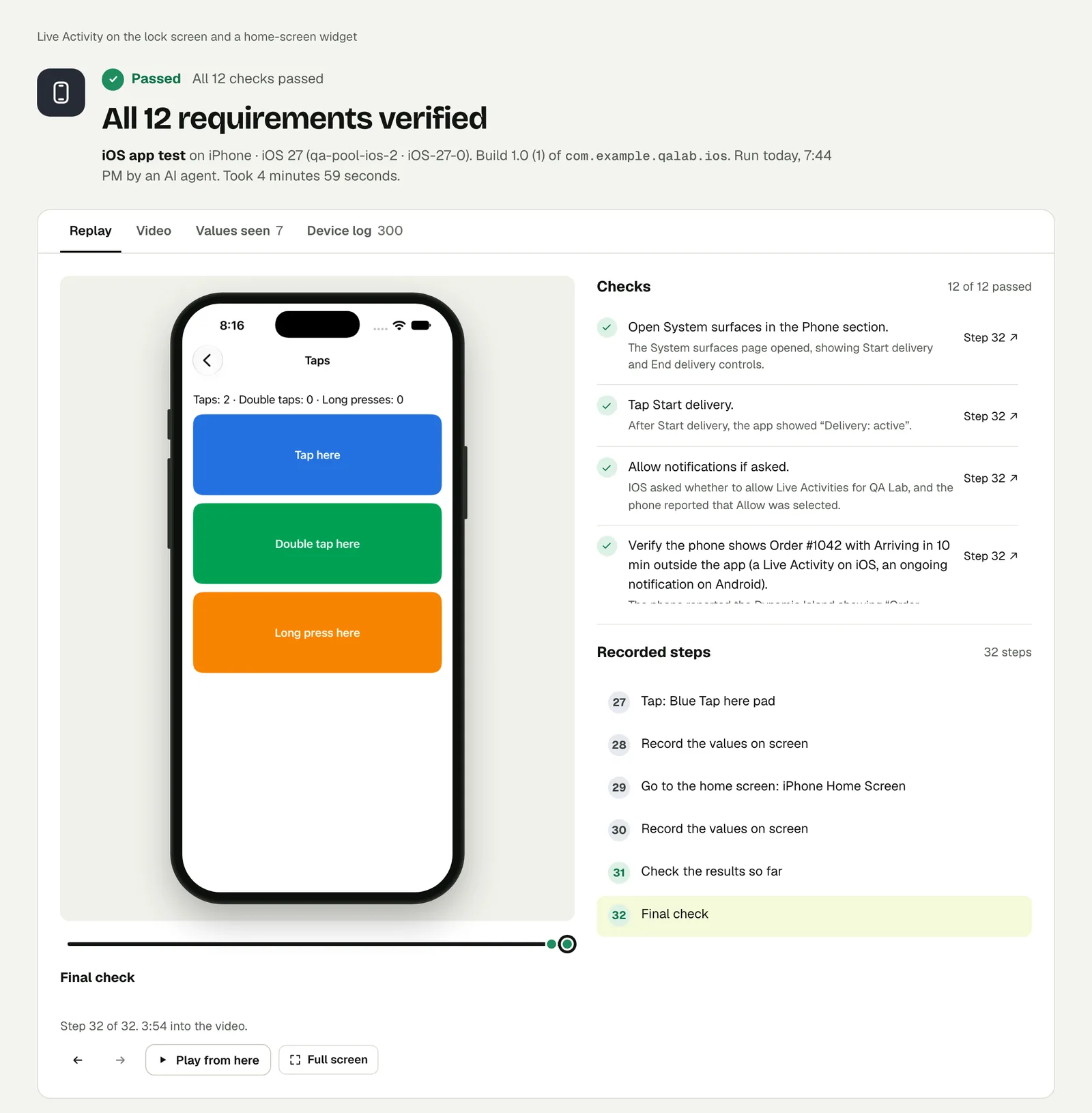
This was the longest run in our mobile series, and the reason is the widget picker. It is slow for a person, too.
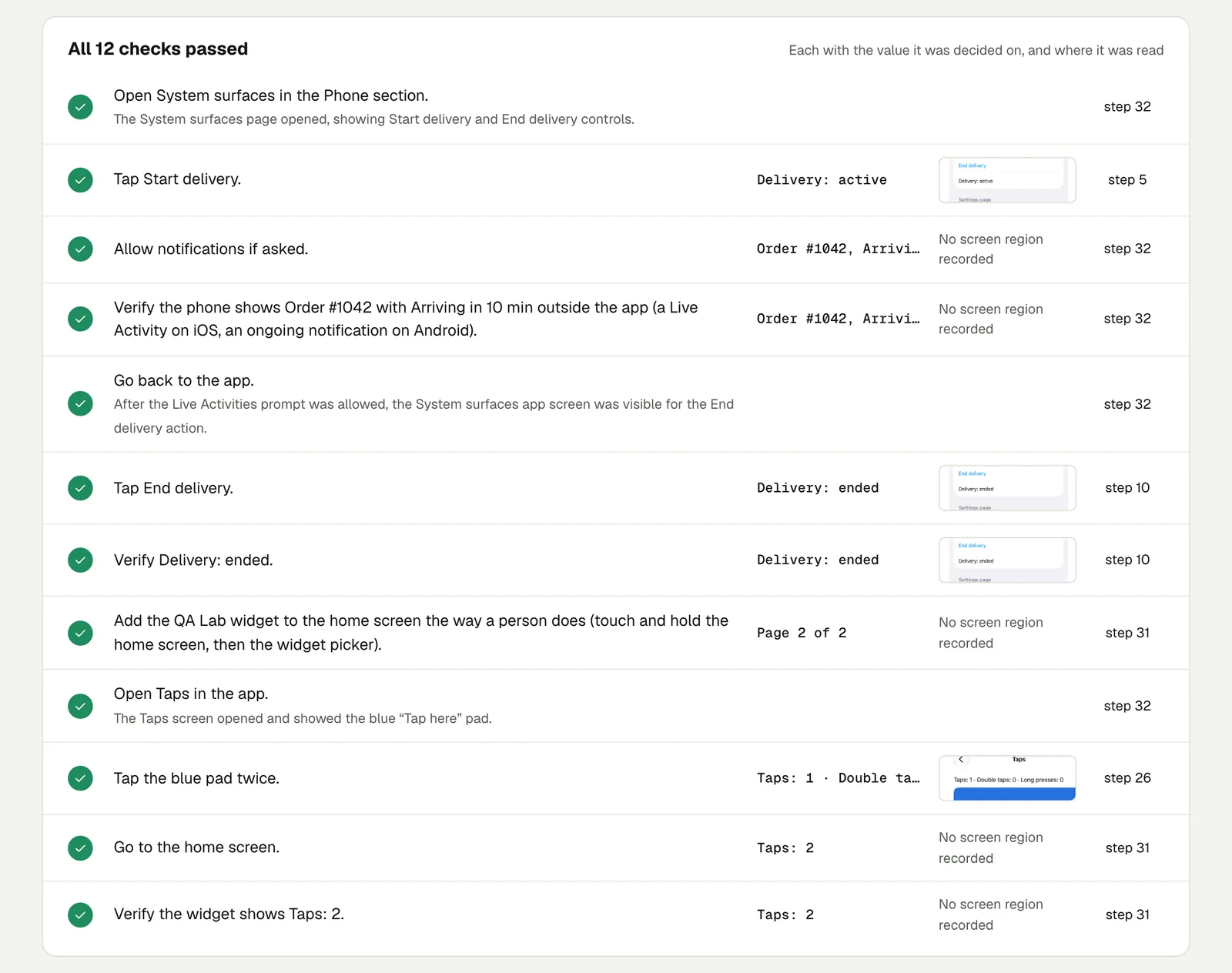
Open the run to step through all 31 recorded steps. The link is read-only and stays live until 18 February 2027.
Write it for your app#
Say what should be visible outside the app, and what should change it:
Sign in with the stored account "customer" and place an order.
Check that the lock screen shows the order with an arrival time.
Go back to the app and cancel the order.
Check that the order is no longer shown on the lock screen.Add the Acme widget to the home screen.
Open the app and add 500 ml of water.
Go to the home screen and check the widget shows 500 ml.What to look for:
- A Live Activity that outlives its order. End or cancel the thing it tracks and check that it goes away.
- A widget that does not refresh. Change the data in the app and read the widget straight after.
- The user says no. Tap Don't Allow on the Live Activities question and check the app still tracks the order inside itself.
On Android the nearest equivalents are an ongoing notification and a home-screen widget. The test text above already names the Android side, so the same test can run there. This post only shows the iPhone run.
Run it#
Upload a build, choose iPhone app in New test, and paste your text. Android and iOS apps has the build formats. Give this kind of test room: set the time limit in test options with the widget picker in mind.
This post is one of a series: The hardest parts of mobile app testing, each one run for real.
Filed underiPhone and iPadNotifications and links