Test deep links: does the link open the right screen?
A link in an email or an ad should land on the item, not the home screen. A plain-language test opens the link on the phone and checks the screen the app shows.
A link is a second front door#
Every link that opens your app is a way in that skips your navigation. A marketing email goes to a product. A password reset goes to a form. A shared item goes to that item.
Each of those is a promise about where the user lands, and each one can break without any screen in your app changing. A route gets renamed. The link handler runs before the app has loaded its data. The link works when the app is already open and drops the user on the home screen when it is not.
It rarely gets tested because the link is opened from outside the app. Someone has to send themselves the link, tap it on a phone and look. Nobody does that for forty links on every release.
The test#
Written as plain text and run on an iPhone with iOS 27:
Open Carousel, page forward to Card 3 and verify Page 3 of 5.
Then open the link qalab://item/42
and verify the app shows You opened Item 42.
The app is QA Lab, our practice app. The first line puts the app somewhere else on purpose, deep in a different screen. The link then has to take it from there to Item 42.
What happened#
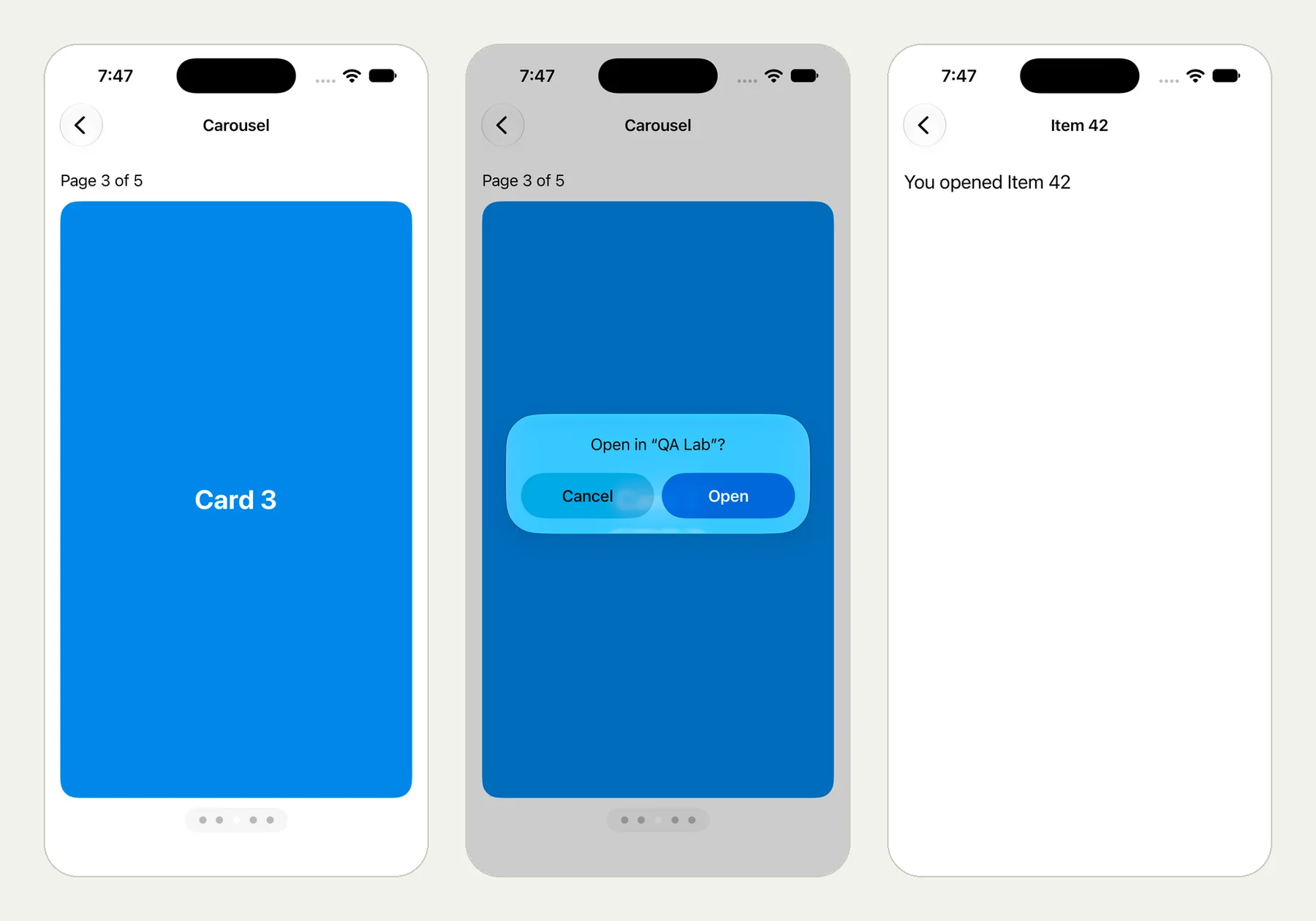
The picture at the top of this page shows three frames from the run: the app on Card 3, the iPhone asking "Open in QA Lab?", and the app on Item 42.
The tester paged to Card 3 and read "Page 3 of 5". Then it opened the link on the phone. The iPhone asked "Open in QA Lab?", the tester tapped Open, and the app showed "You opened Item 42".
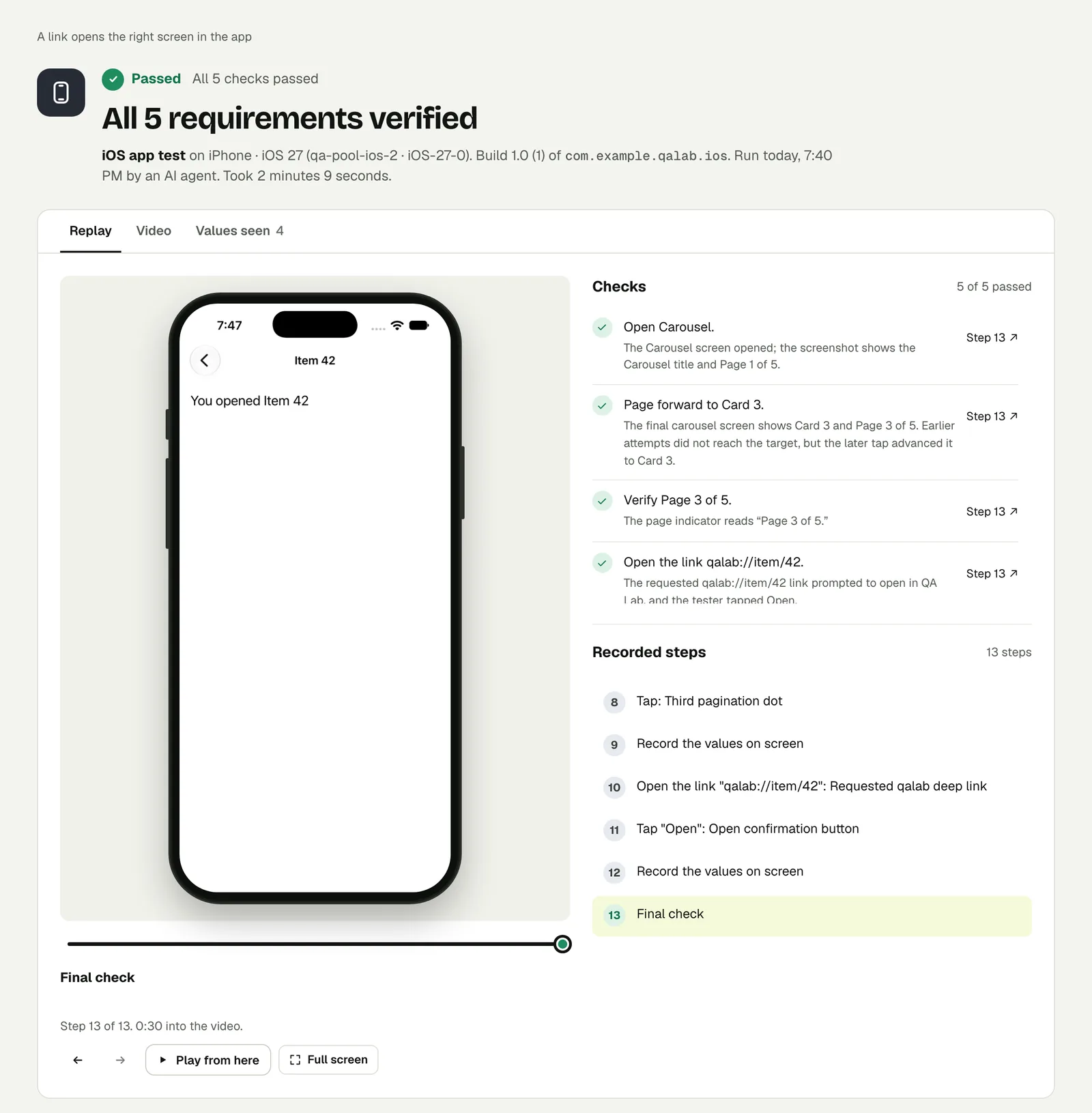
One detail in the result is worth reading. Paging the carousel took more than one try: a swipe did not move it far enough, and the tester used the page dots instead. The check says so: "Earlier attempts did not reach the target, but the later tap advanced it to Card 3." The result tells you what was done, including what did not work the first time.
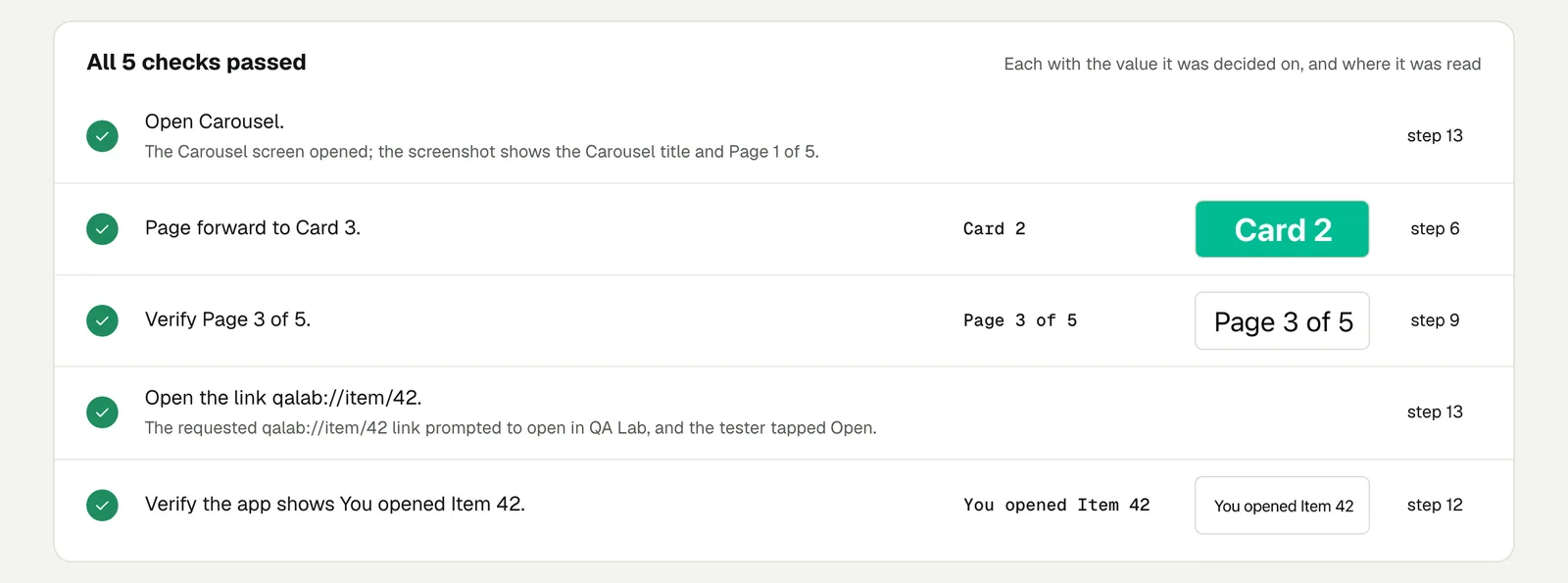
Open the run to step through it. The link is read-only and stays live until 18 February 2027.
Write it for your app#
One test per kind of link is enough to start. Say where the link should land and name something on that screen:
Sign in with the stored account "customer".
Open the link acme://orders/1042
and check that the app shows order 1042 with its delivery status.
Then the cases that break most often:
- Signed out. Open the link before signing in. Check that the app asks for sign-in and then continues to the item, instead of forgetting where the user was going.
- A link to something that is gone. Open a link to a deleted item and check for a clear message, not a blank screen.
- Android. The same text runs on an Android phone. Keep one test per platform, because the link handling is separate code on each.
Run it#
Upload a build, choose iPhone app or Android app in New test, and paste your text. Android and iOS apps says which build to upload, and Write a test has more on wording steps and checks.
This post is one of a series: The hardest parts of mobile app testing, each one run for real.
Filed underiPhone and iPadNotifications and links