Test Face ID unlock: the wrong face, then the right one
The locked path matters as much as the unlocked one. A plain-language test answers the Face ID prompt with the wrong face, then the right one, and checks both.
Nobody on the team has the wrong face#
Biometric unlock guards the most sensitive screens in an app: the balance, the saved cards, the health record. It is also the feature a test script can do the least with.
The Face ID sheet belongs to the phone. Your app asks a question and gets back yes or no. No script can look at the camera. And the half that protects your users, the refusal, is the half that is hard to produce on purpose: the person testing is the person enrolled on the phone, so their face always matches.
So the unlock path is tested constantly, every time a developer opens the app, and the "not recognised" path is tested almost never. That is the path where an app that falls back badly lets someone in.
The test#
Written as plain text and run on an iPhone with iOS 27:
Make sure the phone has Face ID enrolled, open Biometrics,
tap Unlock and answer the prompt with a face that does not match;
verify the app does not show Biometric: unlocked.
Then tap Unlock again, answer with a matching face
and verify Biometric: unlocked.
The app is QA Lab, our practice app. Its Biometrics screen asks the phone for Face ID and shows what came back.
What happened#
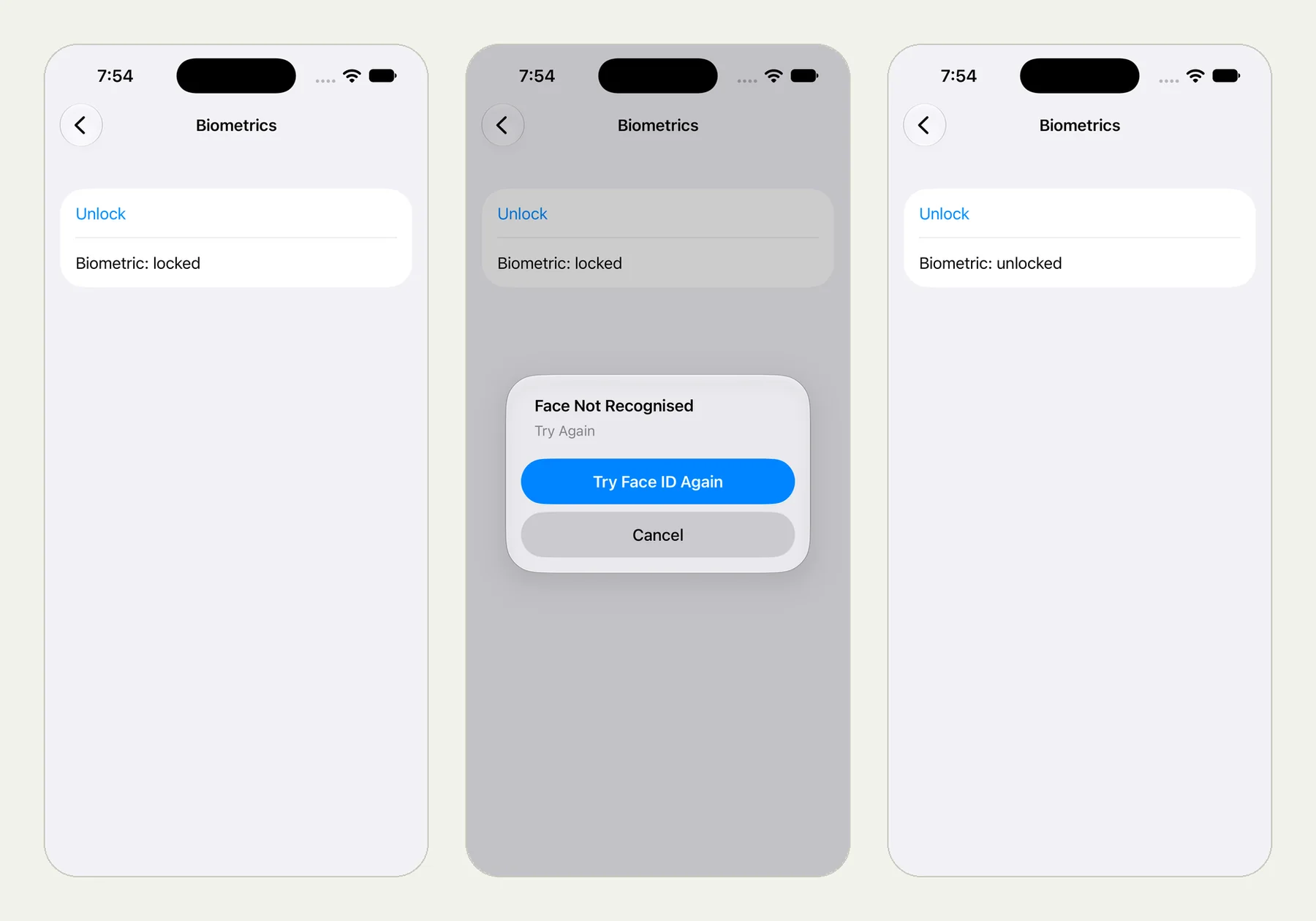
The picture at the top of this page shows three frames from the run: the Face ID prompt, the app still locked after "Face Not Recognised", and unlocked after a matching face.
The tester first checked that the phone had Face ID enrolled. Then it tapped Unlock and gave the prompt a face that does not match. The iPhone answered "Face Not Recognised", and the app still read "Biometric: locked".
It cancelled the prompt, tapped Unlock again and this time presented a matching face. The app read "Biometric: unlocked".
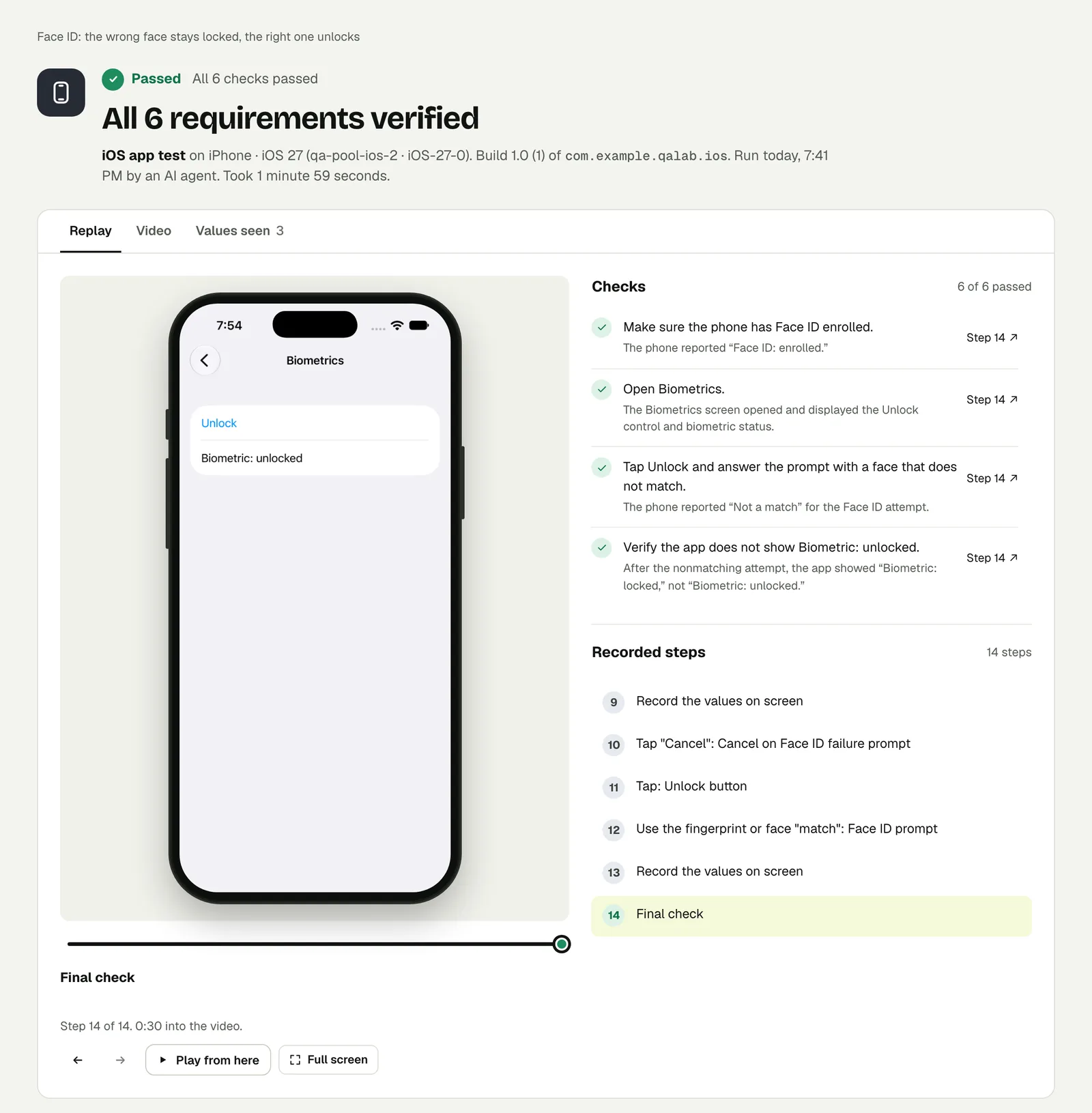
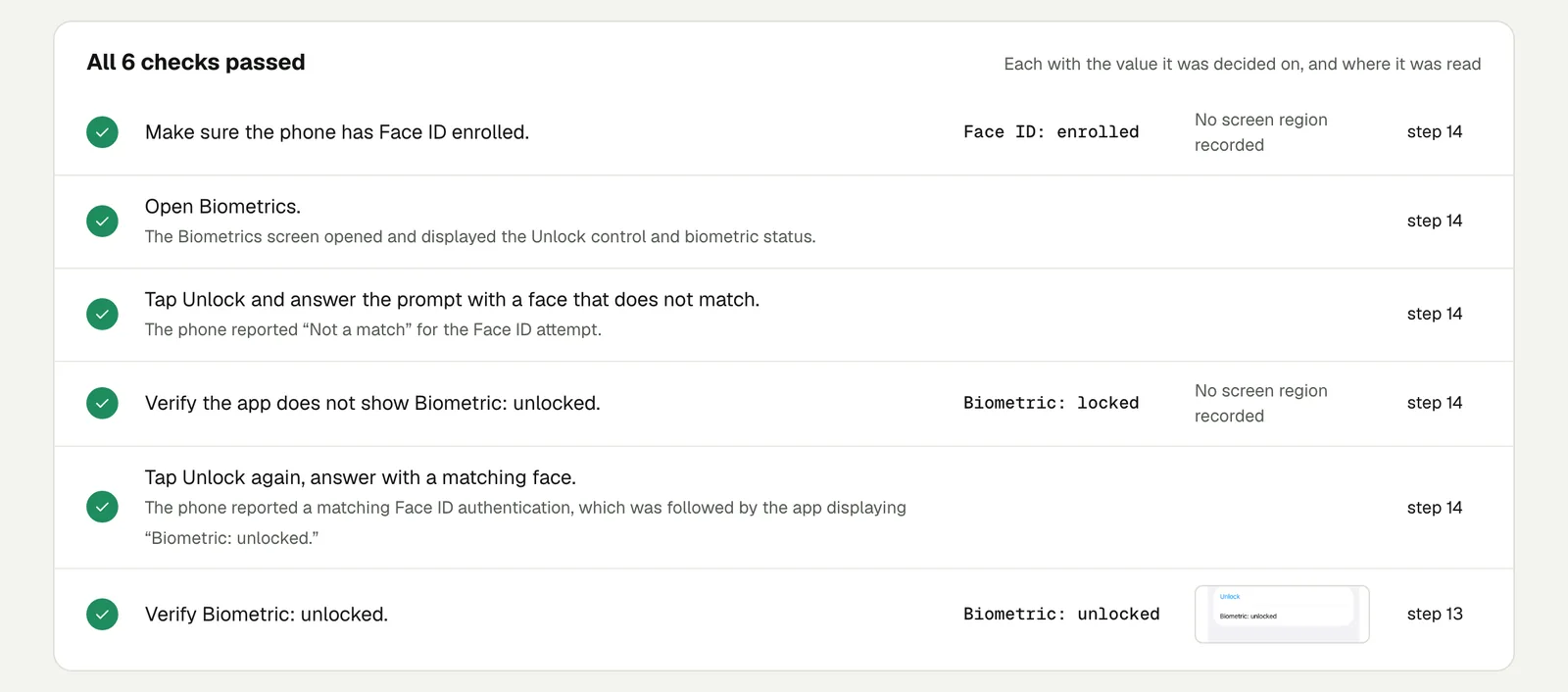
The check that matters most is the negative one, "Verify the app does not show Biometric: unlocked". It passed on what the screen said after the failed attempt: "Biometric: locked".
Open the run to step through it. The link is read-only and stays live until 18 February 2027.
Write it for your app#
Say which face to present and what the app must show, or must not show, after each:
Sign in with the stored account "customer" and turn on
"Unlock with Face ID" in Settings.
Send the app to the background and bring it back.
Answer the Face ID prompt with a face that does not match.
Check that the account balance is not visible.
Answer with a matching face and check that the balance is shown.
Cases to add:
- Cancel. Dismiss the prompt and check that the app offers the passcode or password instead of a dead end.
- Fingerprint on Android. Write "a finger that does not match" and "a matching finger". The test reads the same.
- Nothing enrolled. Some users never set up Face ID. Check that the setting is hidden or explained, not broken.
Run it#
Upload a build, choose iPhone app or Android app in New test, and paste your text. Passwords never go in the test text: store the account once under sign-in accounts and name it. Android and iOS apps has the build formats.
This post is one of a series: The hardest parts of mobile app testing, each one run for real.
Filed underiPhone and iPadSign-in and codesPrompts and permissions