Test what your app remembers after the phone kills it
Phones close apps in the background to free memory. A plain-language test types a draft, has the phone kill the app, reopens it and checks the draft is still there.
The bug your users describe as "it lost my stuff"#
A user is halfway through a form. They switch to their banking app to copy a number, read a message, come back two minutes later. Your app starts from the home screen and the form is empty.
Nothing crashed. The phone needed memory and closed your app while it was in the background. Both iPhone and Android do this all the time, and both expect the app to save its state on the way out and restore it on the way back in.
It is one of the hardest things to reproduce at a desk. On a developer's phone, with a debugger attached and plenty of memory, the app is never killed. So the restore code runs for the first time in production.
The test#
Written as plain text and run on an iPhone with iOS 27:
Open Lifecycle in the Phone section and type Groceries into Draft.
Have the phone kill the app in the background and reopen it,
then open Lifecycle again; verify Draft restored: yes
and that Draft still holds Groceries.
The app is QA Lab, our practice app. Its Lifecycle screen counts launches and says whether a draft was restored.
The second line is the one you cannot do with a tap. The test asks the phone to end the app's process while it is in the background, the way the system does when memory runs short, and then open it again.
What happened#
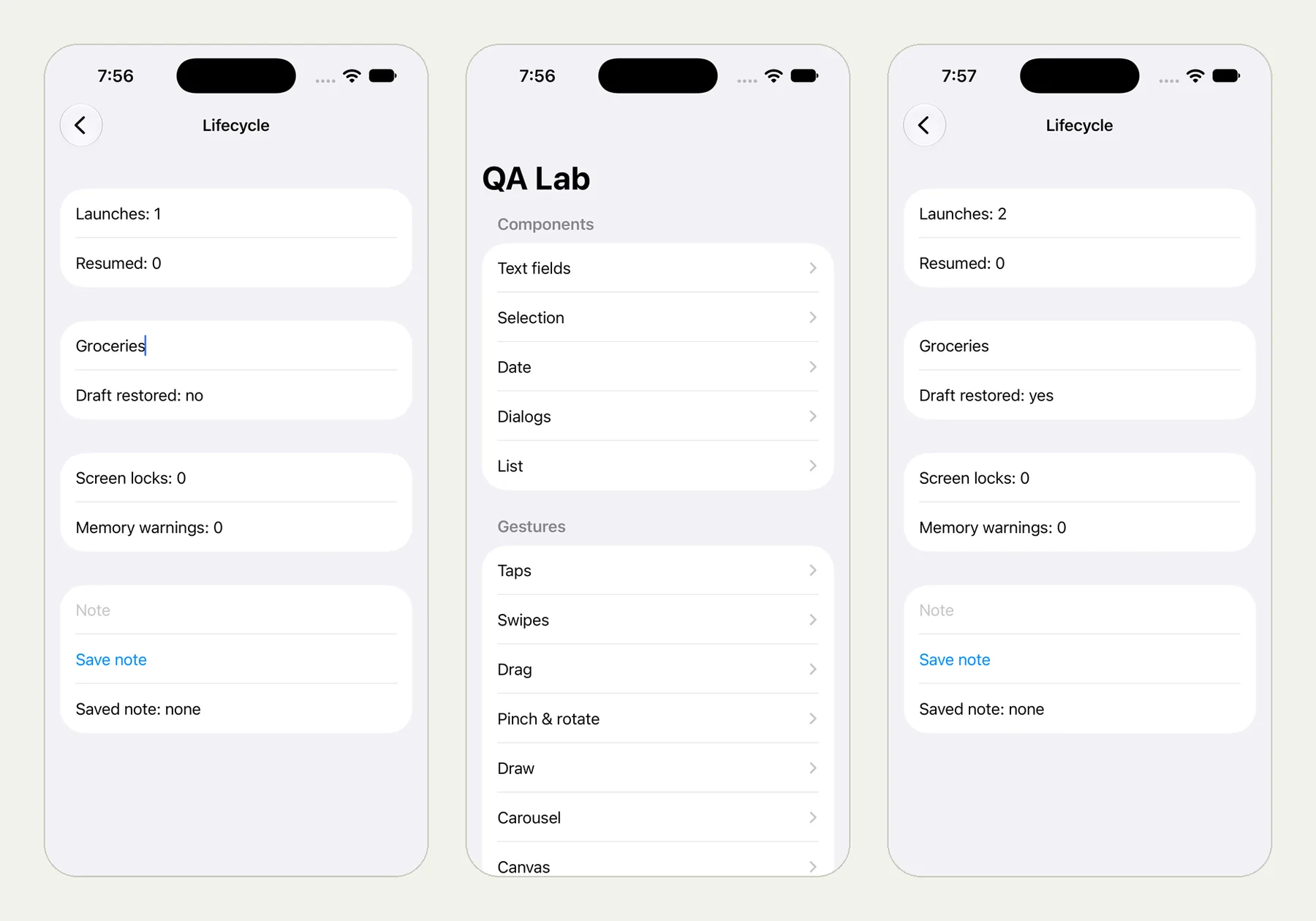
The picture at the top of this page shows three frames from the run: the draft typed on the first launch, the app reopened at its start screen, and the Lifecycle screen on the second launch with the draft restored.
The tester typed "Groceries". The screen read "Launches: 1" and "Draft restored: no". Then the phone killed the app and opened it again. Back on the Lifecycle screen it read "Launches: 2", the draft field still held "Groceries", and the line had changed to "Draft restored: yes".
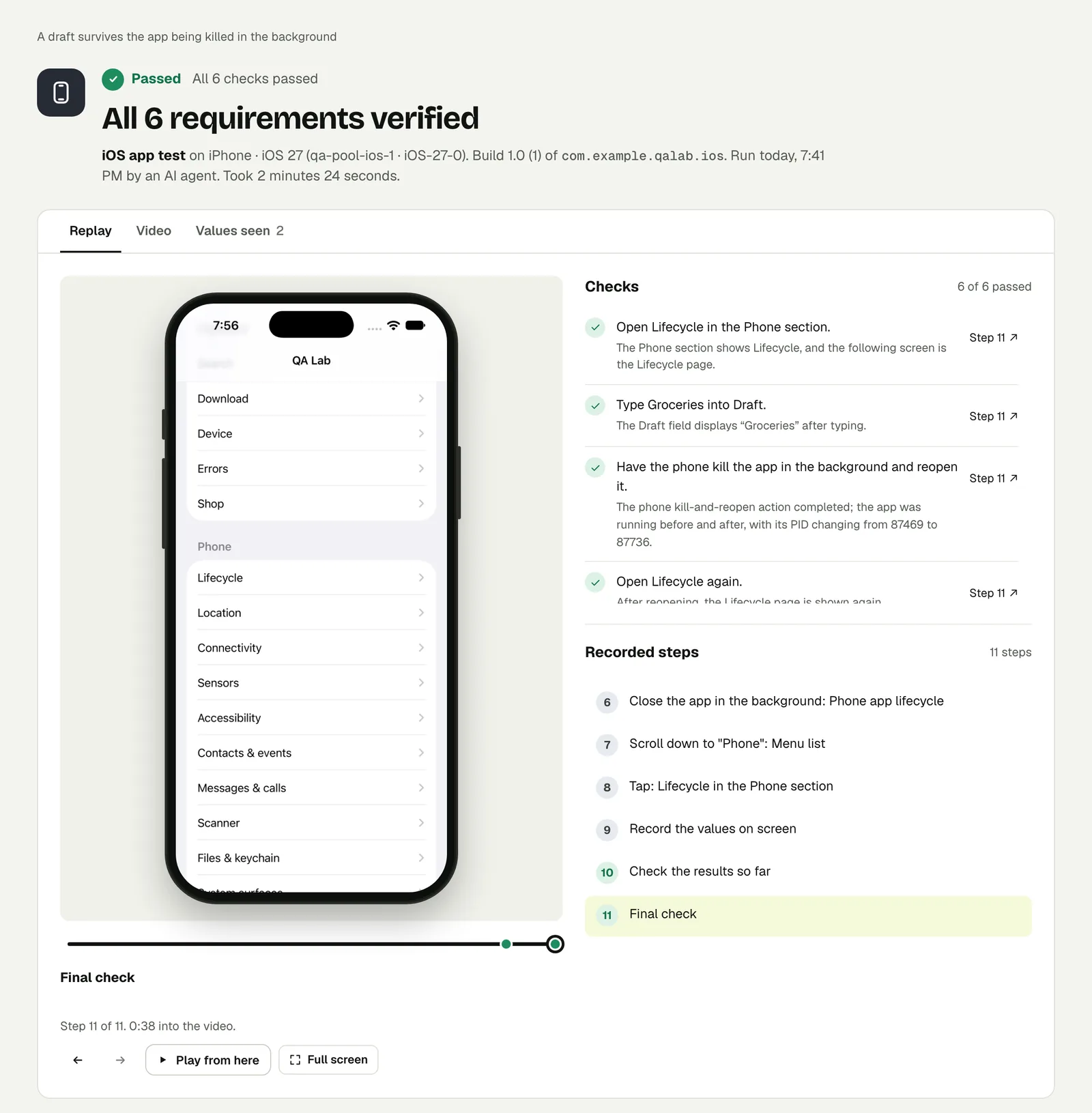
The result does not take the kill on trust. The check "Have the phone kill the app in the background and reopen it" passed with this reason: the app was running before and after, and its process id changed from 87469 to 87736. A new process id means it really was a new process, and the draft survived it.
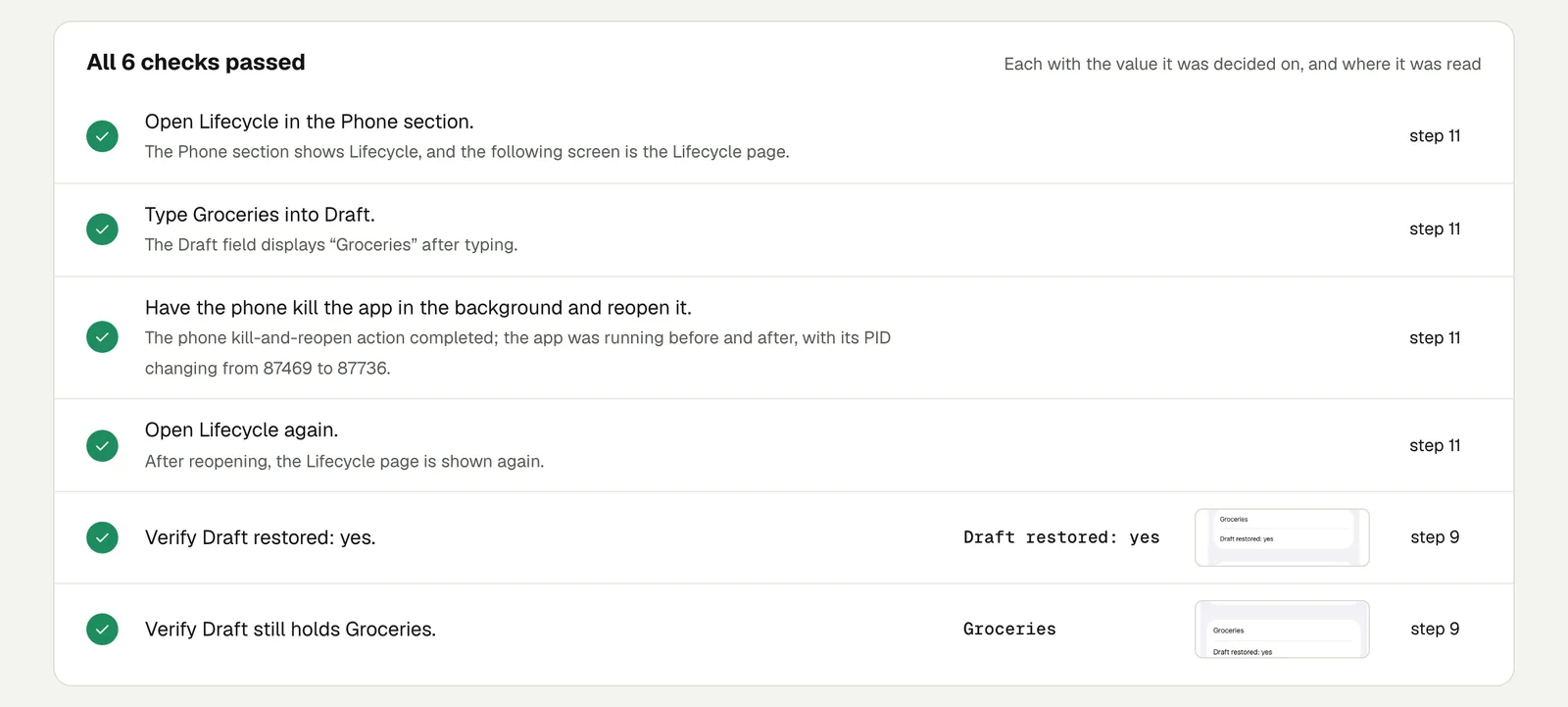
Open the run to step through it. The link is read-only and stays live until 18 February 2027.
Write it for your app#
Pick the place where losing state costs your user the most: a long form, a cart, a message being written, a checkout on step three of four.
Sign in with the stored account "customer".
Add two items to the cart and start checkout.
Fill in the delivery address and stop on the payment step.
Have the phone kill the app in the background and reopen it.
Check that the cart still holds both items
and that the delivery address does not have to be typed again.
Three more that find real bugs:
- Background and return. "Send the app to the background for 30 seconds and bring it back" is a different path from a kill. Check that a signed-in session is still signed in.
- Lock and unlock. "Lock the phone for 3 seconds and unlock it" catches screens that reset on resume.
- Reinstall. "Uninstall the app, install it again" and check what should be gone is gone, and what lives on your server comes back after sign-in.
Run it#
Upload a build, choose iPhone app or Android app in New test, and paste your text. Android and iOS apps has the build formats. A draft test like this is cheap to keep in the set that runs on every build.
This post is one of a series: The hardest parts of mobile app testing, each one run for real.
Filed underiPhone and iPadPhone state