Test location features without leaving your desk
Set where the phone is, move it along a route at walking or driving speed, and check what your app shows. Two real runs, and one passing check that hid a bug.
The feature you test by going for a walk#
If your app shows a store nearby, tracks a delivery or measures a run, part of it only works when the phone moves. At a desk the phone does not move.
So location gets tested in ways nobody is proud of. Someone walks around the car park with a debug build. Someone flies to the one city where the bug happens. Or the team tests with the office's coordinates forever, and learns about the edge of a delivery zone from a customer.
A test needs two things it does not have at a desk: a way to put the phone somewhere, and a way to move it.
The test#
Written as plain text and run on an iPhone with iOS 27:
Set the phone's location to 35.6586,139.7454.
Then open Location in the Phone section and tap Start updates,
allowing location access, and verify Location: 35.6586, 139.7454.
Then move the phone along a route from 35.6586,139.7454
to 35.6600,139.7454 at about 10 metres per second,
wait for the route to finish
and verify Distance shows between 100 m and 250 m.
The first point is Tokyo Tower. The second is about 156 metres north of it. The app is QA Lab, our practice app: its Location screen shows the position the phone reports, counts the updates and adds up the distance travelled.
What happened#
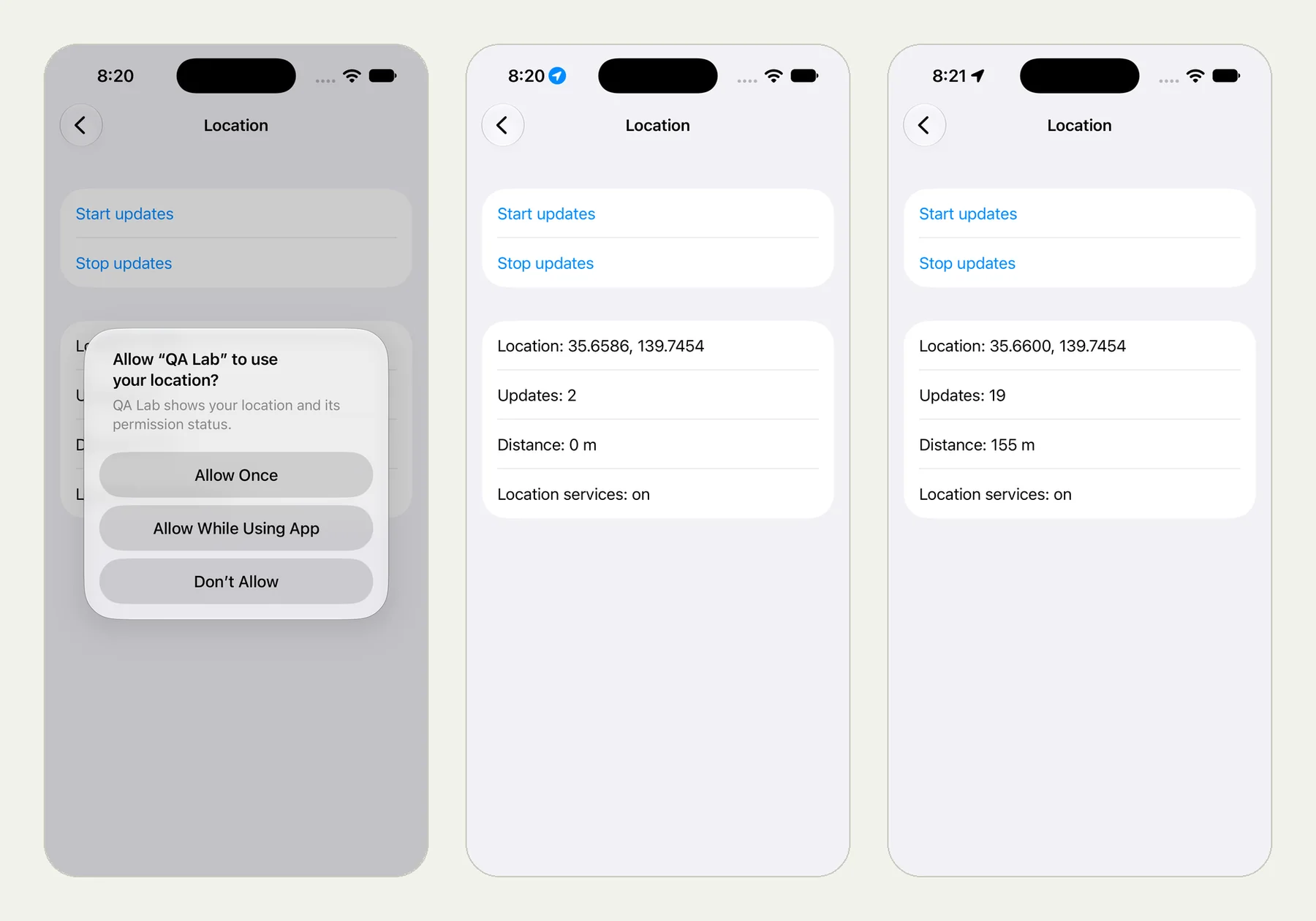
The picture at the top of this page shows three frames from the run: the iPhone asking whether QA Lab may use the location, the app at the first point with "Distance: 0 m", and the app at the end of the route with "Distance: 155 m" after 19 updates.
The tester put the phone at the first point, opened the screen, answered the location prompt with Allow While Using App and read the position. Then it moved the phone along the route at 10 metres a second, waited for it to finish and read the distance.
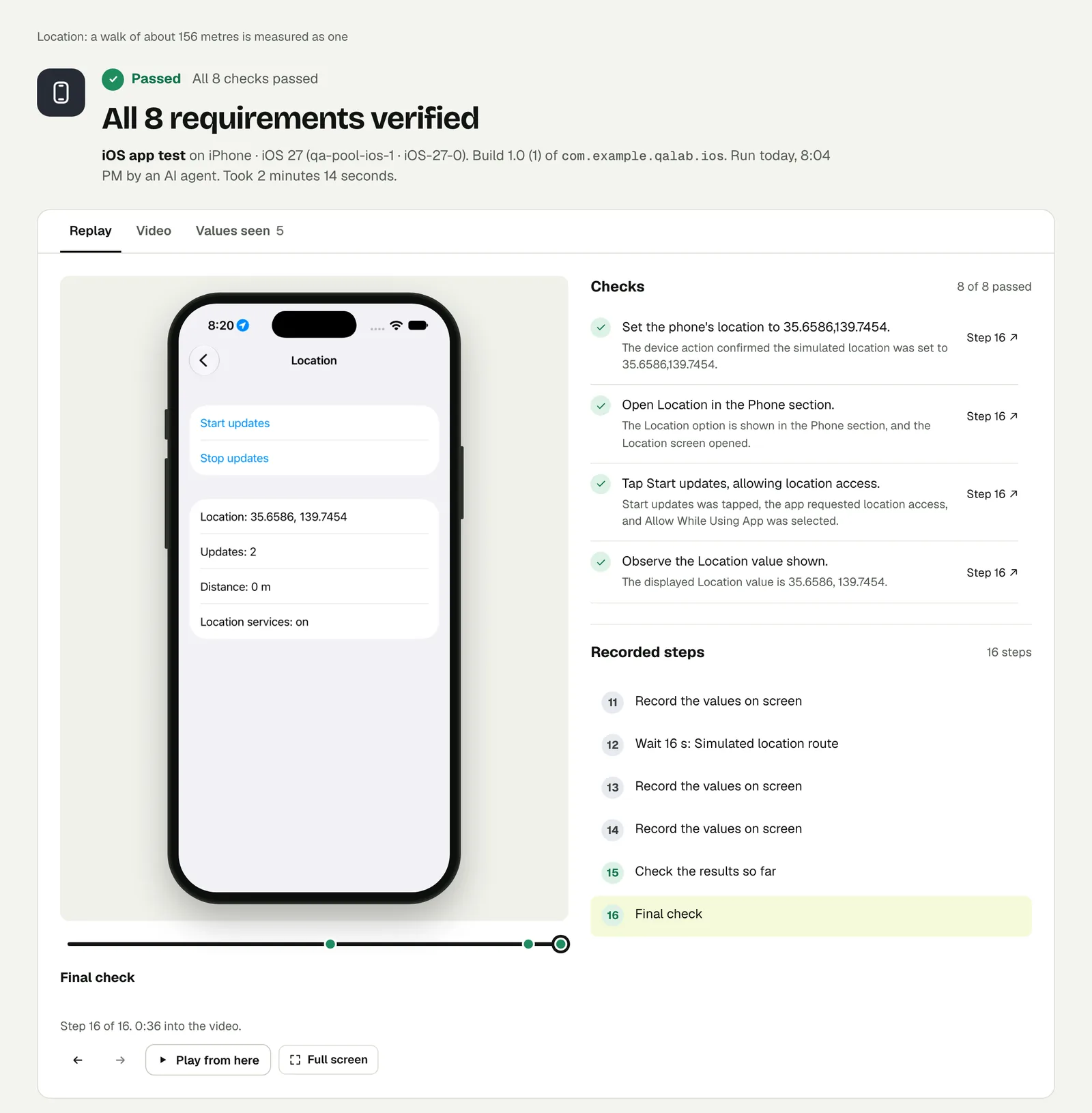
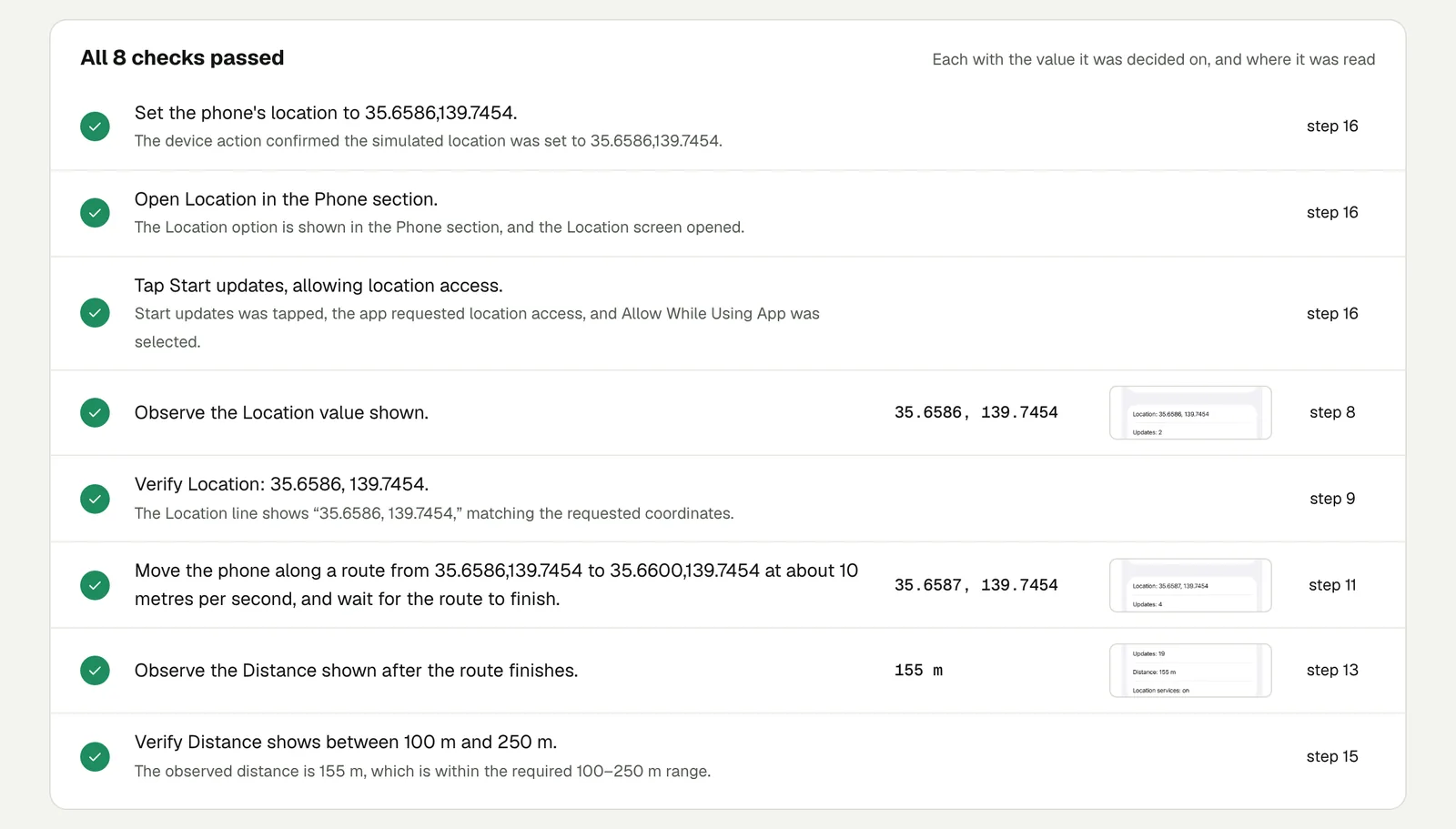
The app measured 155 m for a route of about 156 m. The check passed because 155 is between 100 and 250, and the result says exactly that.
Open the run to step through it. The link is read-only and stays live until 18 February 2027.
The run before this one passed, and should have worried us#
Our first version of this test was looser. It started the updates first, then set the location, and its last line was:
...and verify Distance shows at least 100 m.It passed. All 8 checks green. Here is what it passed on:
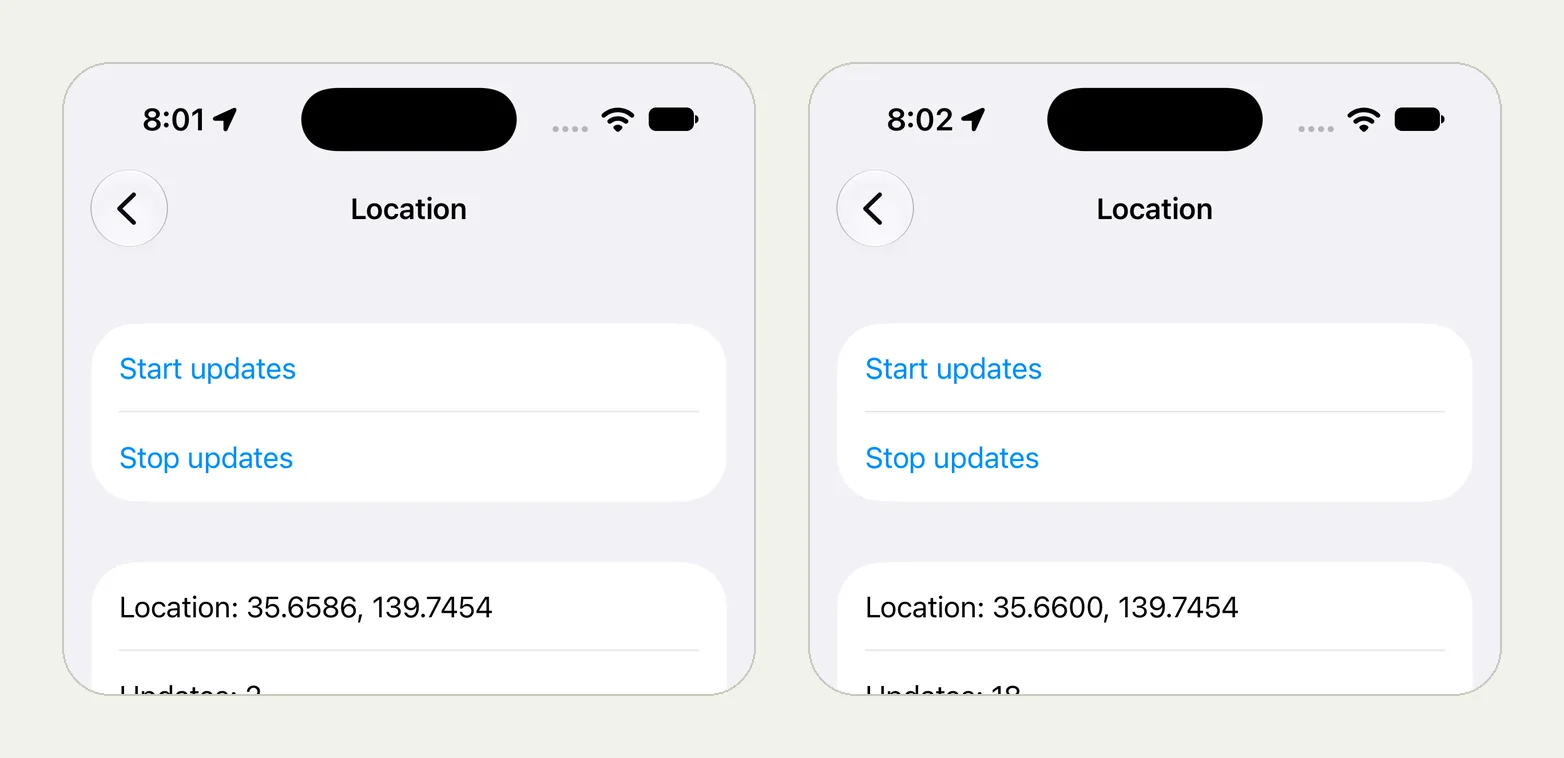
"Distance: 11104542 m". Eleven thousand kilometres. The check said "at least 100 m", and 11,104,542 is at least 100, so the tester passed it and said so in plain words: "11,104,542 ≥ 100".
The number is not noise. The app was already listening when the test moved the phone to Tokyo, and it counted the jump from wherever the phone had been as distance travelled. The route itself added the right amount: 11,104,542 minus 11,104,386 is 156.
In a practice app that is a curiosity. In a run tracker it is a bug report: "your app says I ran 11,000 km". A phone's first position fix can be far from its second, and an app that adds up distance has to throw that jump away.
We did not find this by reading a green tick. We found it because the result shows the value each check was decided on, and that value was absurd. Open that first run and look at the last check.
Two lessons for your own tests:
- Write a range, not a floor. "Between 100 m and 250 m" fails on 11,000 km. "At least 100 m" does not.
- Read the values, not only the verdict. A check can be true and still be telling you something is wrong.
Write it for your app#
Sign in with the stored account "customer".
Set the phone's location to 51.5079,-0.0877 and open Stores.
Check that the nearest store listed is London Bridge.
Set the phone's location to 48.8584,2.2945 and refresh.
Check that the nearest store is now in Paris
and that prices are shown in euros.
Cases worth a test each:
- The user says no. Deny the location prompt and check that the app offers a way to type a postcode instead.
- The edge of a zone. Put the phone just inside your delivery area, then just outside it.
- A moving order. Start a route and check that the map, the distance or the arrival time changes while it runs.
Run it#
Upload a build, choose iPhone app or Android app in New test, and paste your text with your own coordinates. Android and iOS apps has the build formats, and Steps, checks and values explains how values are recorded.
This post is one of a series: The hardest parts of mobile app testing, each one run for real.
Filed underiPhone and iPadPhone stateVerdicts and proof