Test SMS code sign-in on Android without a second phone
A text message arrives, Android offers the code, the app verifies it. One plain-language test covers the whole hand-off, with the message and the result on video.
Three systems have to agree#
Signing in with a code sent by text looks like one step to the user. Underneath it is three:
- A text message arrives on the phone.
- Android notices the code in it and offers to hand it to your app, after asking the user.
- Your app puts the code in the field and verifies it.
Your own screens only cover the third. The message belongs to the Messages app, and the "allow this app to read the message" prompt belongs to Android. To test the hand-off by hand you need a phone with a SIM, a way to send it a message, and patience. To test it in a script you need to reach outside your app twice.
So it is usually tested once, by hand, before the first release, and never again.
The test#
Written as plain text and run on an Android phone with Android 16:
Open Messages & calls in the Phone section.
Have an SMS arrive from 5550001 saying Your QA Lab code is 482913,
get the code into the Code field (the phone's suggestion or typed
from the message) and tap Verify; verify Code: 482913.
The app is QA Lab, our practice app. Its Messages & calls screen waits for a code by SMS the way a sign-in screen does.
The second line is the part to notice. The test says what message should arrive, and the phone receives it during the run. No SIM, no second phone, no SMS provider.
What happened#
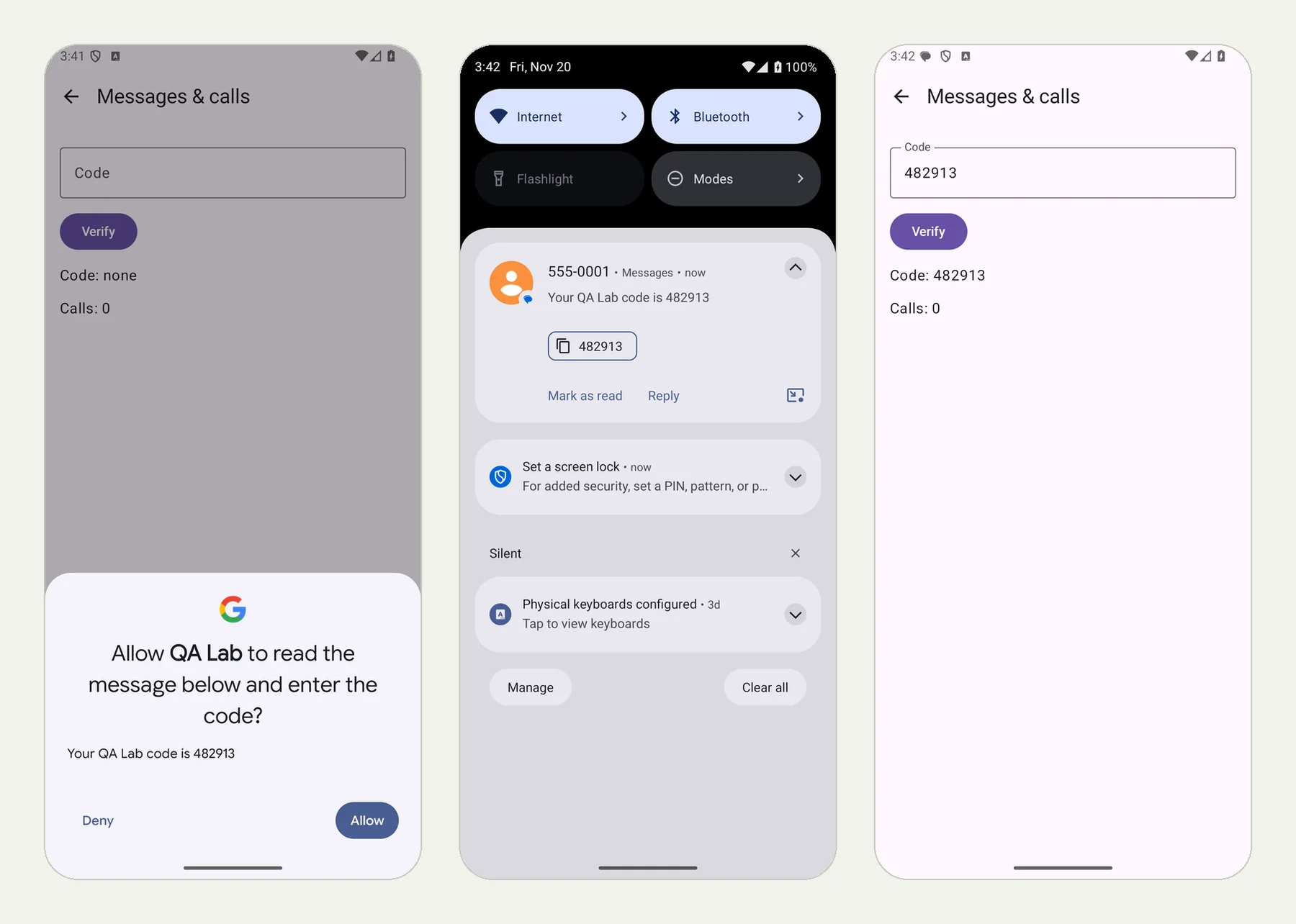
The picture at the top of this page shows three frames from the run: Android asks whether QA Lab may read the message, the message in the phone's notifications with the code, and the app after Verify.
The message arrived. Android showed its prompt: "Allow QA Lab to read the message below and enter the code?" with the message under it. The tester tapped Allow, the code appeared in the field, and it tapped Verify. The app showed "Code: 482913".
The tester then did something a careful person would do: it pulled down the phone's notifications to confirm the message was really there, from 555-0001, with the exact text.
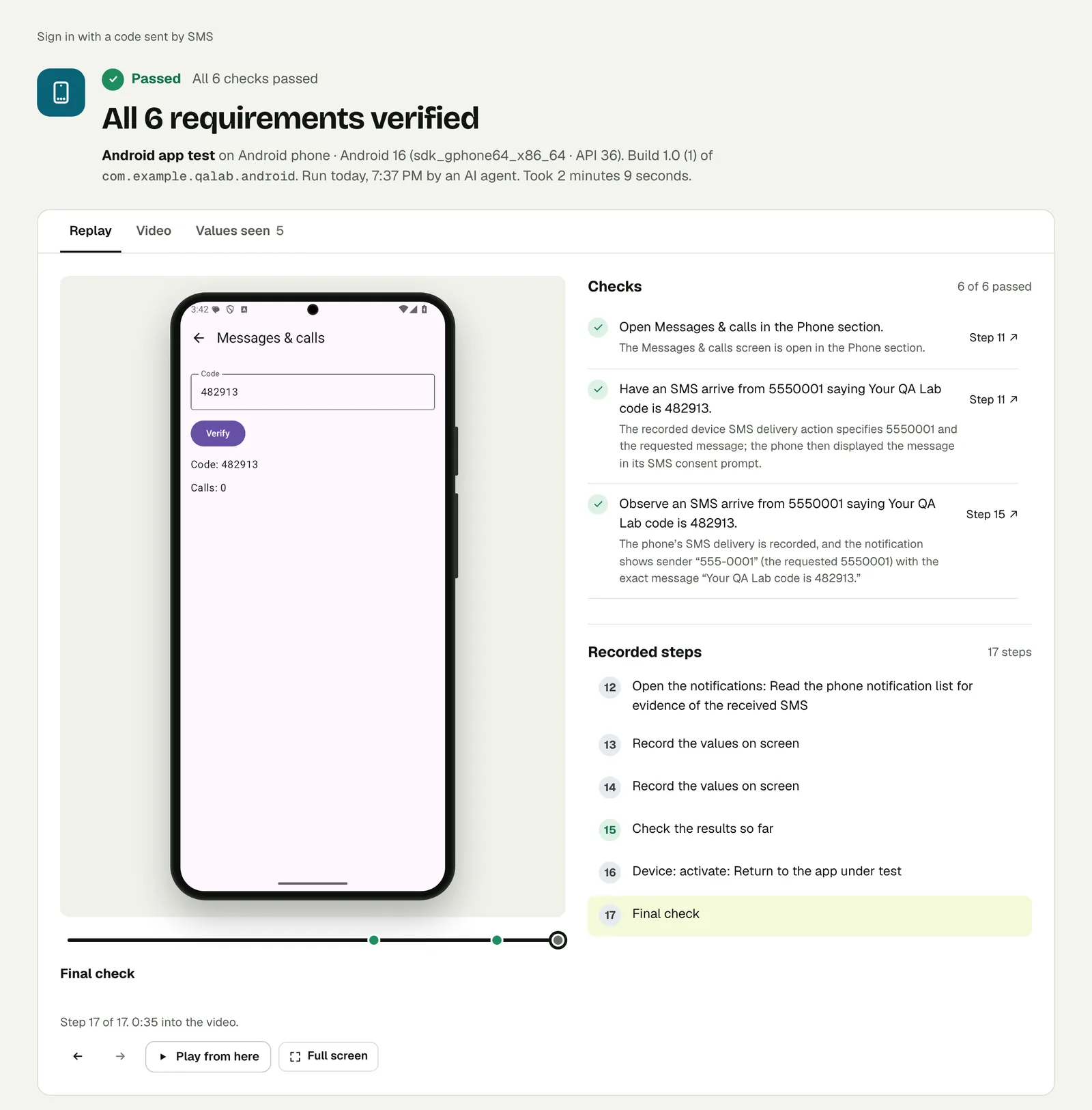
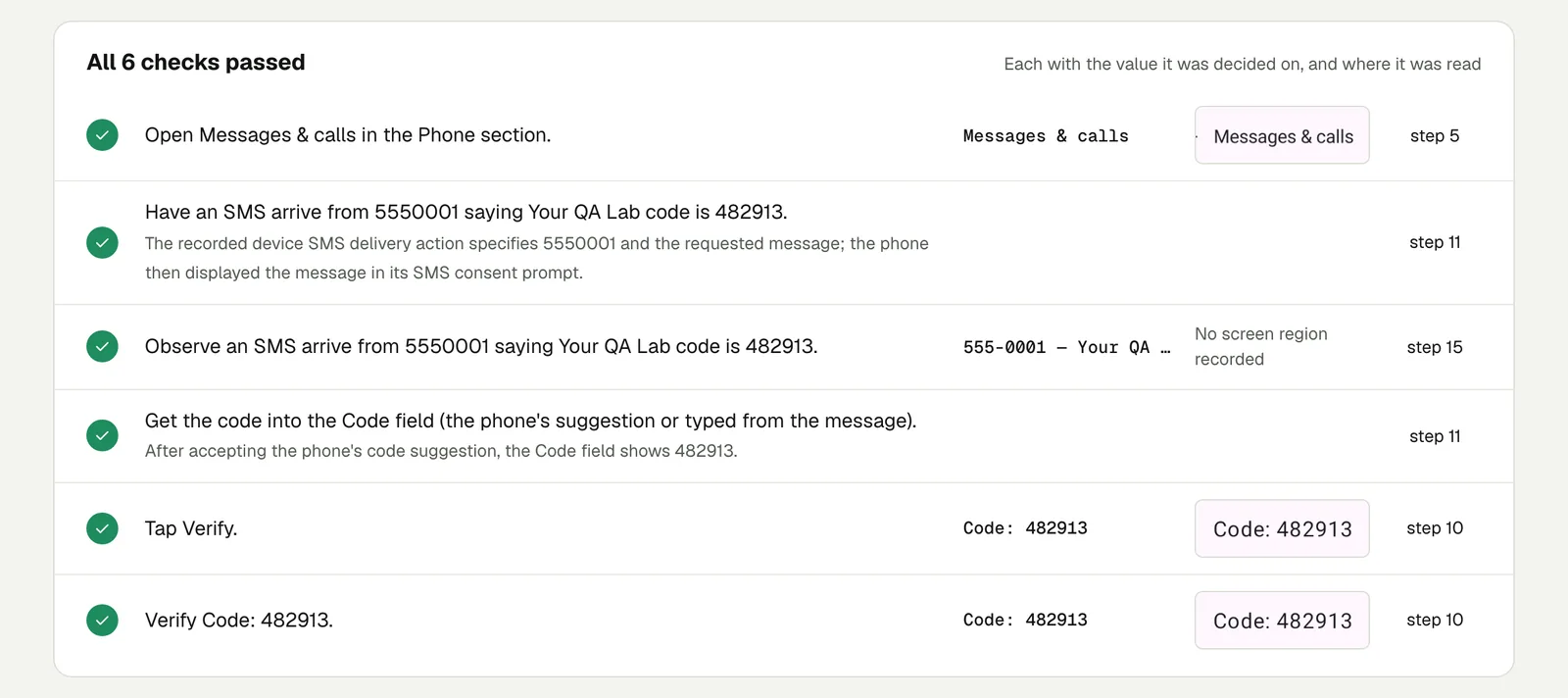
Open the run to step through it. The link is read-only and stays live until 18 February 2027.
What this run does and does not cover#
It covers what your app does with a code message: the Android prompt, the code landing in the field, and the verification.
It does not cover your SMS provider. The message in this run is delivered to the phone by the test, not sent by a server. Whether your backend sends the text, and how fast, is a question for your provider's delivery log.
That split is useful. When sign-in by SMS breaks in production, the first question is always "did the message not arrive, or did the app not take it?" This test answers the second half on every build.
Write it for your app#
Use the wording of your real message, because Android reads the code out of the text:
Enter the phone number 0400 000 001 and tap Send code.
Have an SMS arrive from 5550001 saying
"123456 is your Acme verification code".
Accept the phone's suggestion to use the code.
Check that the app signs in and shows the home screen.
Worth checking next:
- The user taps Deny. Check that they can still type the code by hand.
- A wrong code. Have a different code arrive than the one your test backend expects and check the error the app shows.
- The message format. If the phone never offers the code, the text of the message is usually why. The run shows the message exactly as the phone received it.
Run it#
Upload an APK, choose Android app in New test, and paste your text. Android and iOS apps has the details on builds. If your sign-up runs in a browser instead, Test sign-ups that send an email or SMS code covers that side.
This post is one of a series: The hardest parts of mobile app testing, each one run for real.
Filed underAndroidSign-in and codes