Test what your app does when the user says no to a permission
Location allowed, camera denied, microphone denied, contacts allowed. One plain-language test answers each system prompt as told and checks what the app shows after.
Why this one gets skipped#
The permission prompt is not part of your app. The phone draws it, on top of your app, and your app only hears the answer. That is why test scripts struggle with it: the buttons are not in your screens, their wording changes between OS versions ("Allow While Using App", "Allow Once", "Don't Allow"), and the newer contacts prompt on iPhone is a whole sheet with its own choices.
There is a second problem. A phone does not keep asking. An iPhone shows each prompt once, and Android stops showing it after the user has denied it more than once. To see the prompt again you reinstall the app or reset its settings. So to test "allow" and "deny" for four permissions by hand, you reinstall the app again and again.
The path most teams never test is the one a real share of users take: they tap Don't Allow. If the app then shows an empty screen, or asks again in a loop, nobody on the team has seen it.
The test#
This is the whole test. It was written as plain text and run on an iPhone with iOS 27.
Open Permissions. Request Location and allow it while using the app,
then request Camera and deny it, then request Microphone and deny it,
then request Contacts and allow it.
Verify Location: granted, Camera: denied, Microphone: denied
and Contacts: granted.
The app is QA Lab, the practice app we build to test the tester. Its Permissions screen has one row per permission and shows what the phone answered.
What happened#
Every run starts with fresh app data, so every prompt appears again, every time. No reinstalling.
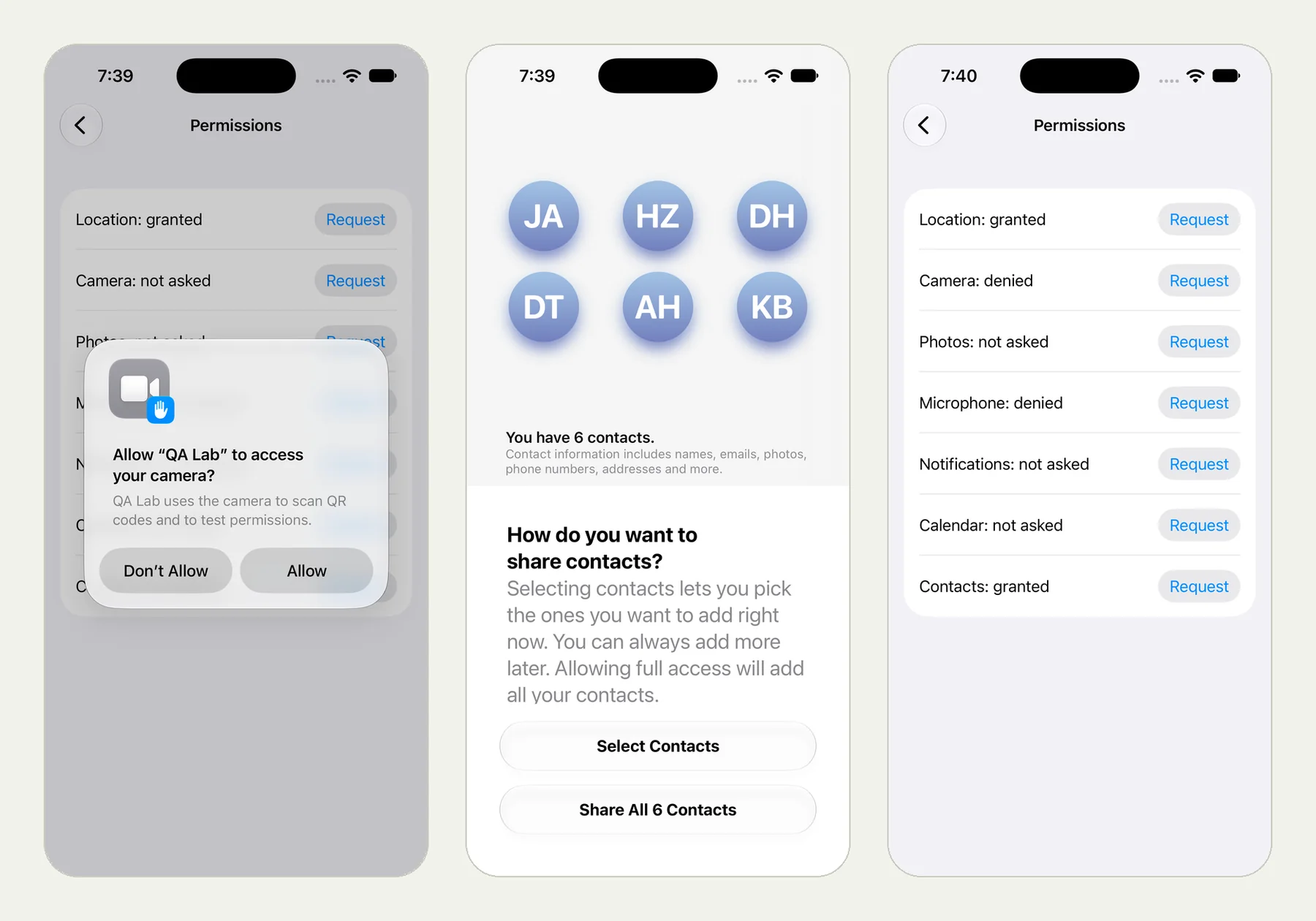
The picture at the top of this page shows three frames from the run: the camera prompt before "Don't Allow" was tapped, the contacts sheet before "Share All 6 Contacts", and the app afterwards.
The tester read each prompt and answered it the way the test said. For the camera it tapped Don't Allow. For contacts, the iPhone showed its sheet asking how to share contacts, and the tester chose Share All 6 Contacts. Then it read the four lines in the app.
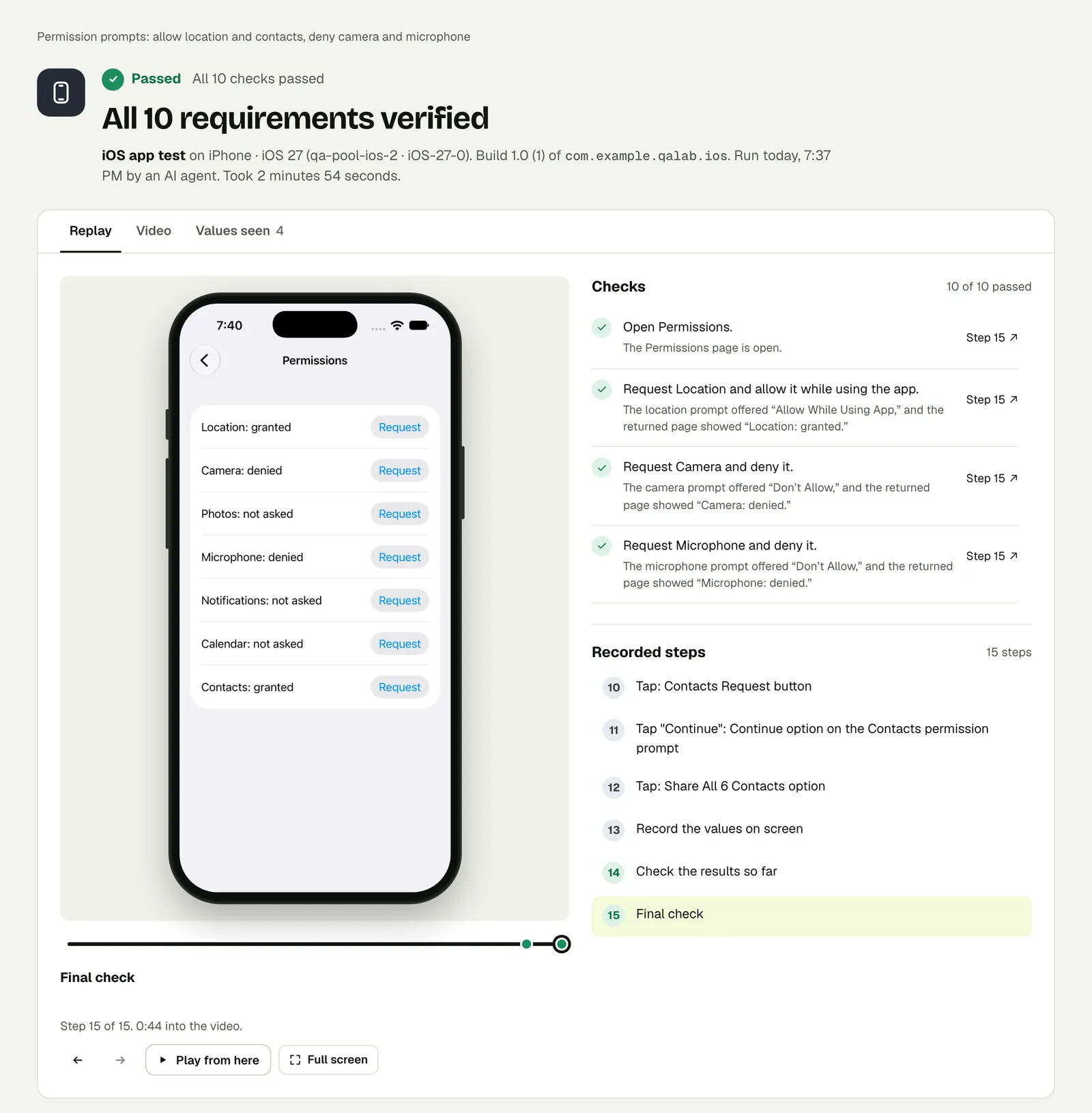
Each check names what it was decided on. "Request Camera and deny it" passed because the prompt offered "Don't Allow" and the app then showed "Camera: denied". The four status lines were read from the screen, and the result shows the exact place each one was read.
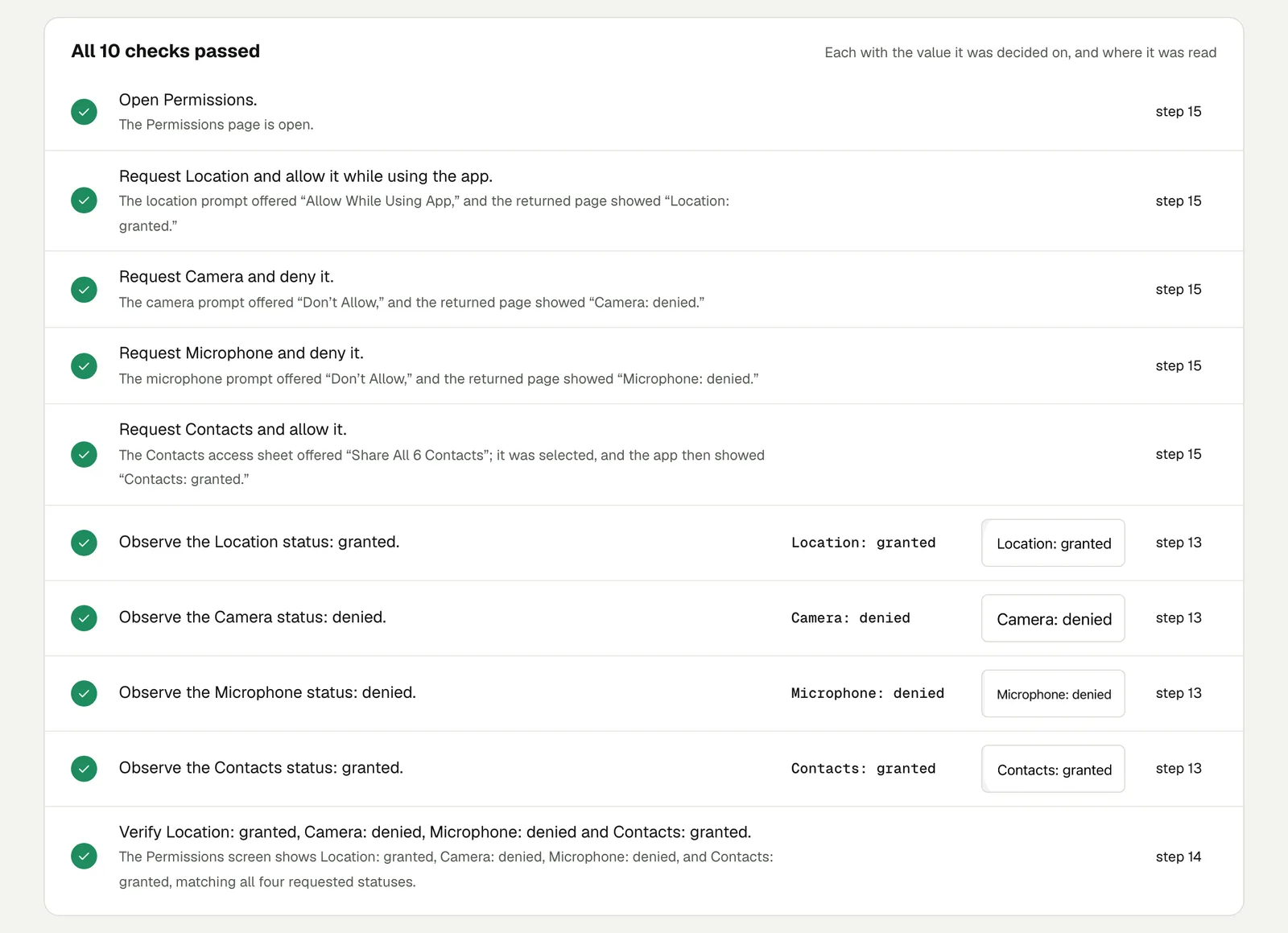
You can open the run itself and step through it. The link is read-only and stays live until 18 February 2027.
Write it for your app#
Replace the last sentence with what your app should do. The denied path is where the value is:
Open the scanner. When the phone asks for the camera, deny it.
Check that the app explains why it needs the camera
and offers a button to open Settings.
Check that the rest of the app still works: go back and open Orders.
Three checks worth adding once the basic one passes:
- Deny, then try again. Once the phone has stopped asking, the only way back is Settings. Check that your app notices and sends the user there instead of doing nothing.
- Allow once. For location on iPhone, write "allow it once" and check what the app does the next time it needs a position.
- An older OS. Prompts differ between versions. Keep the test and change what it runs on: iOS 17 to 27, Android 10 to 16, phone or tablet.
Run it#
Upload a build, choose iPhone app or Android app in New test, and paste your text. Android and iOS apps says which build file to upload. To run it on every build your pipeline makes, see Builds from CI.
This post is one of a series: The hardest parts of mobile app testing, each one run for real.
Filed underiPhone and iPadPrompts and permissions