Test that a notification opens the right screen
The notification arrived. Did tapping it open the order, or only the home screen? A plain-language test waits for it, taps it and checks where the app lands.
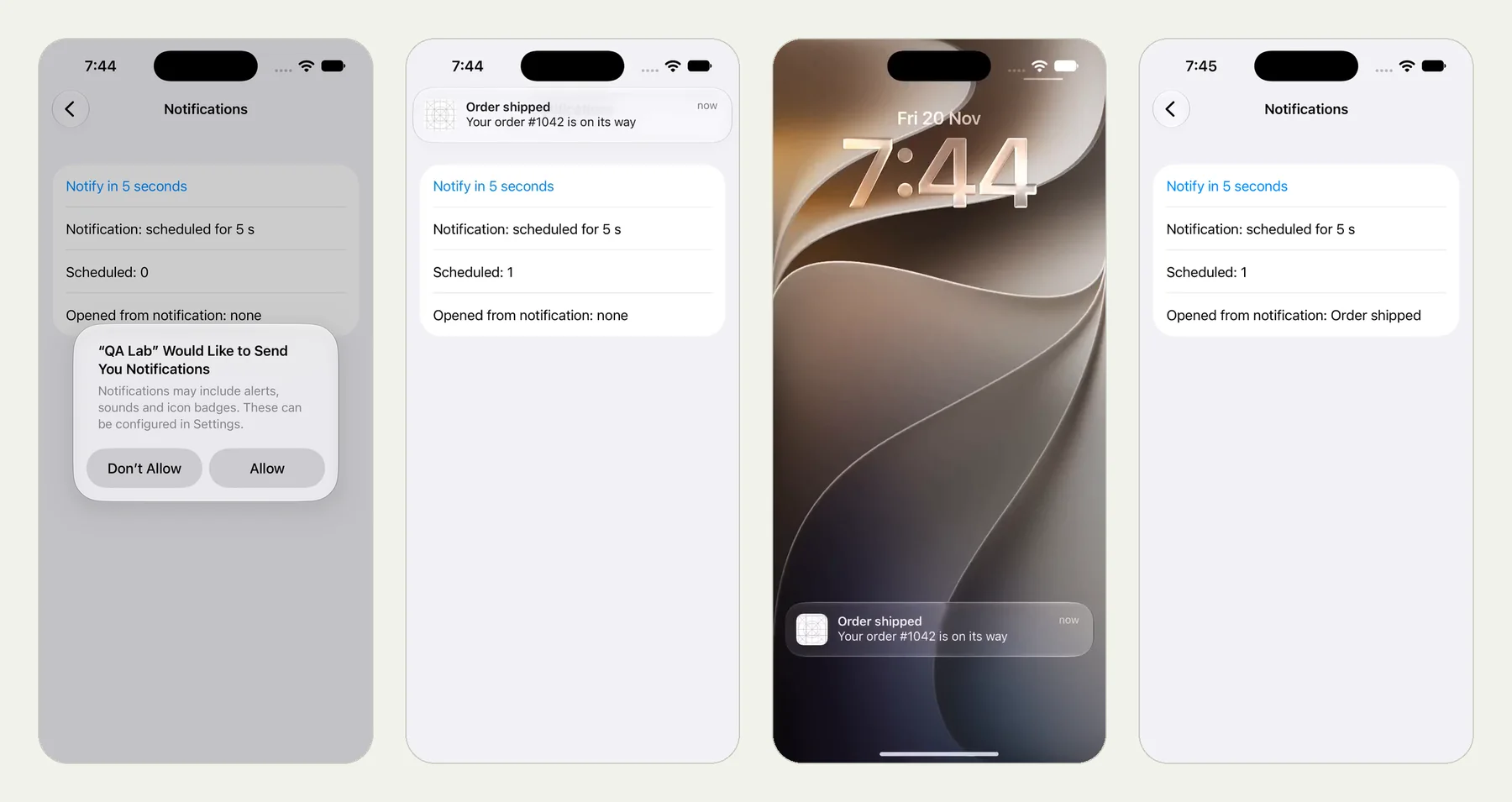
The bug is after the tap#
Teams check that a notification is sent. Fewer check what happens when someone taps it.
That tap is where the bugs are. The notification says "Order shipped" and the app opens on the home screen. Or it opens the right order when the app was already open, and the wrong screen when it was closed. Or the user said no to notifications on day one and the feature has been dead for them since.
It is awkward to test by hand and worse to script. The notification is drawn by the phone, outside your app. It appears a few seconds later, somewhere at the top of the screen or on the lock screen, and then it is gone. A script that only sees your app's own screens cannot see it at all.
The test#
Written as plain text and run on an iPhone with iOS 27:
Open Notifications and tap Notify in 5 seconds,
allowing notifications if the phone asks.
When the Order shipped notification arrives, open it and verify
the app shows Opened from notification: Order shipped.
The app is QA Lab, our practice app. Its Notifications screen schedules a notification titled "Order shipped" and records whether the app was opened from it.
What happened#
The picture at the top of this page shows four moments from the run: the phone asks for permission, the notification arrives as a banner, the tester finds it in the phone's notification list and taps it, and the app reports where it was opened from.
- The tester tapped Notify in 5 seconds. The phone asked whether QA Lab may send notifications, and the tester tapped Allow.
- The notification arrived: "Order shipped. Your order #1042 is on its way".
- The tester opened the phone's notification list and tapped it.
- The app came back and showed "Opened from notification: Order shipped".
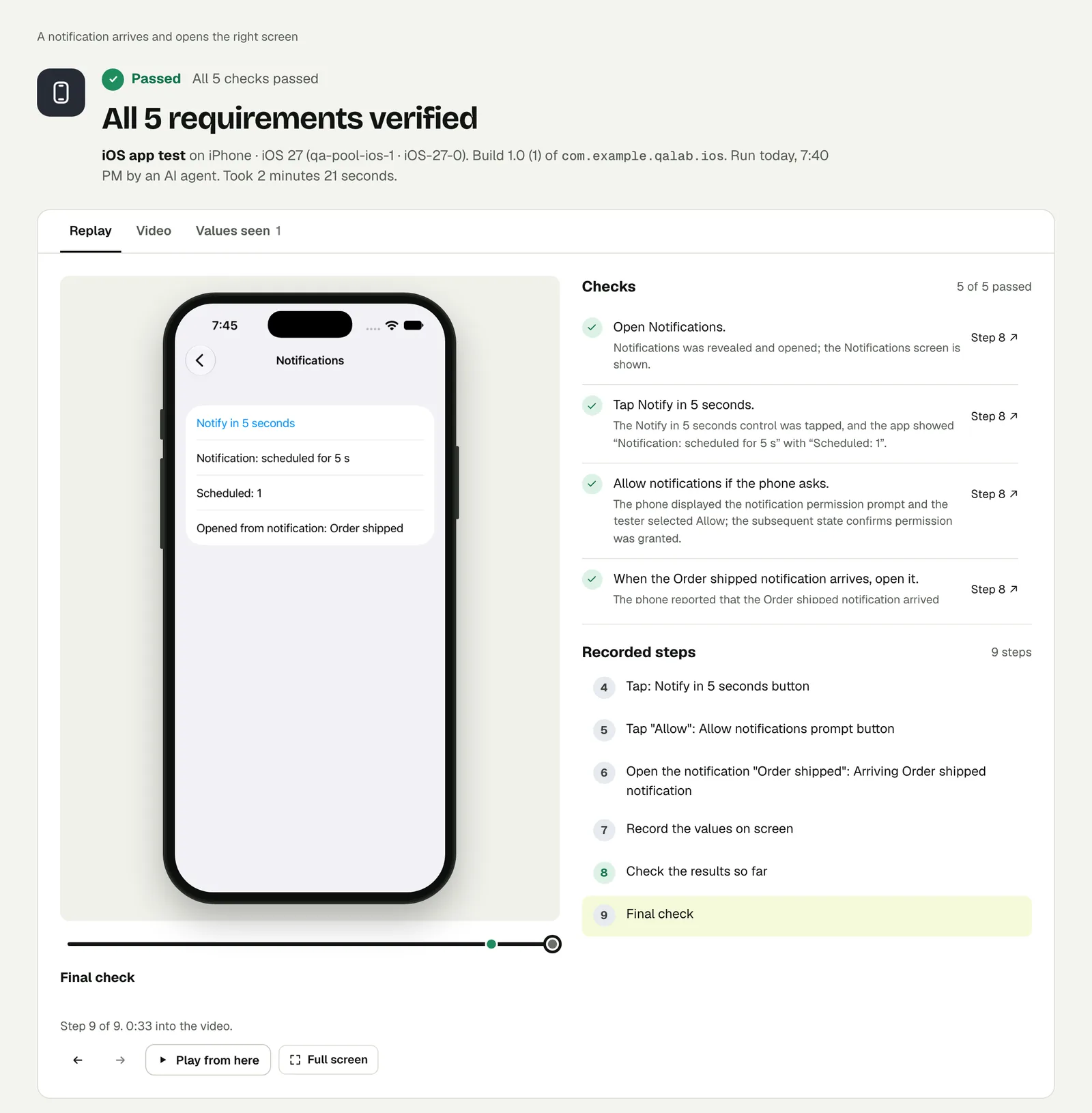
The last check is the one that matters, and it was decided on text read from the screen, with the place it was read marked.
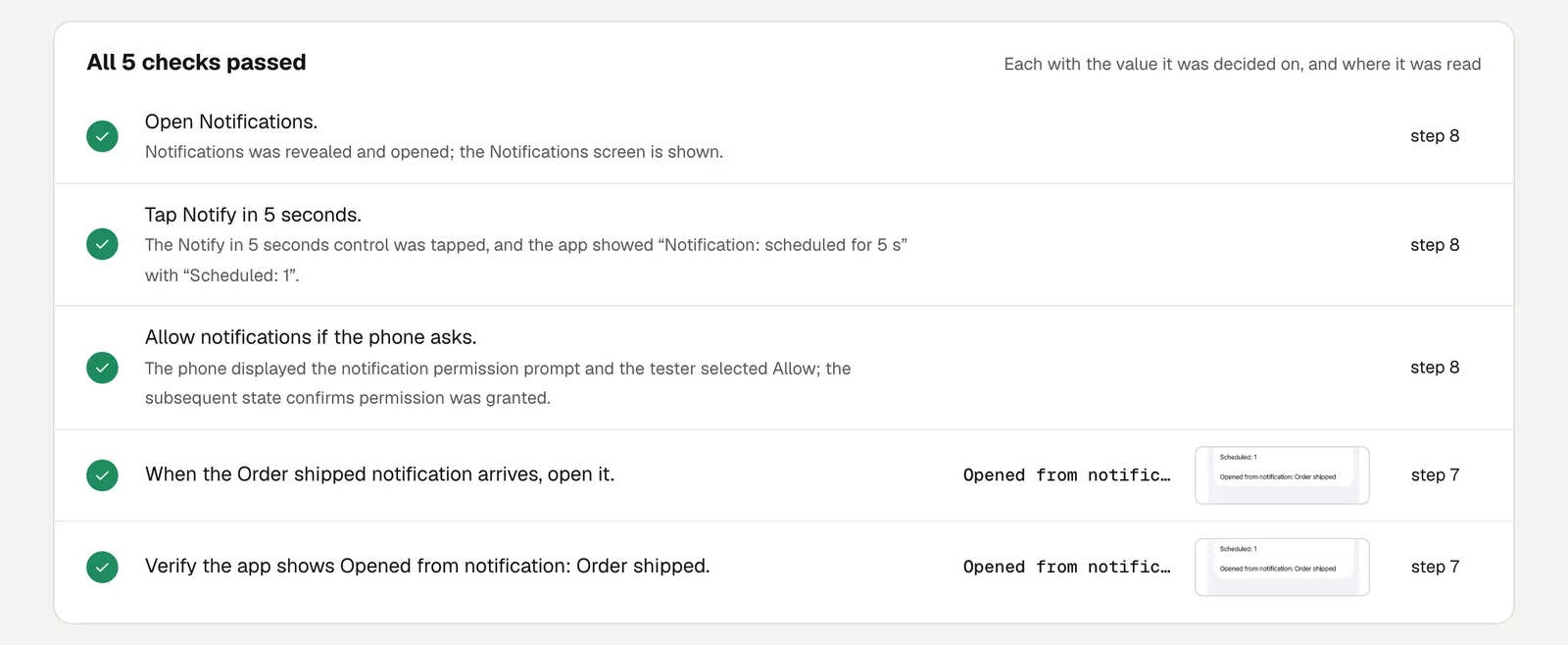
Open the run to step through it. The link is read-only and stays live until 18 February 2027.
The same test on Android#
We ran the same four lines on an Android phone with Android 16, without changing a word. The prompt looks different there, the notification sits in a different place, and the tester pulls down the notification shade to tap it. The test text does not care.
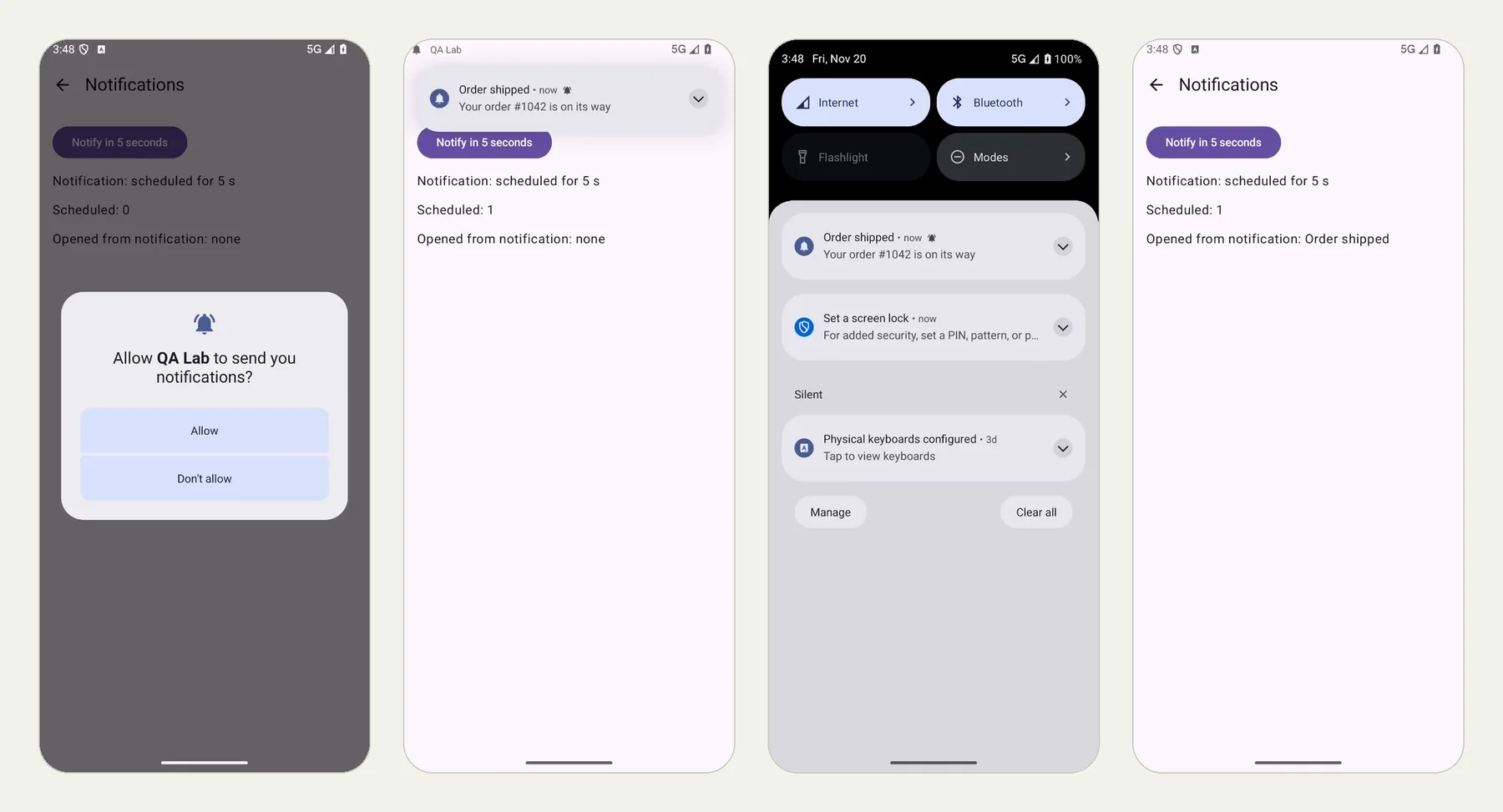
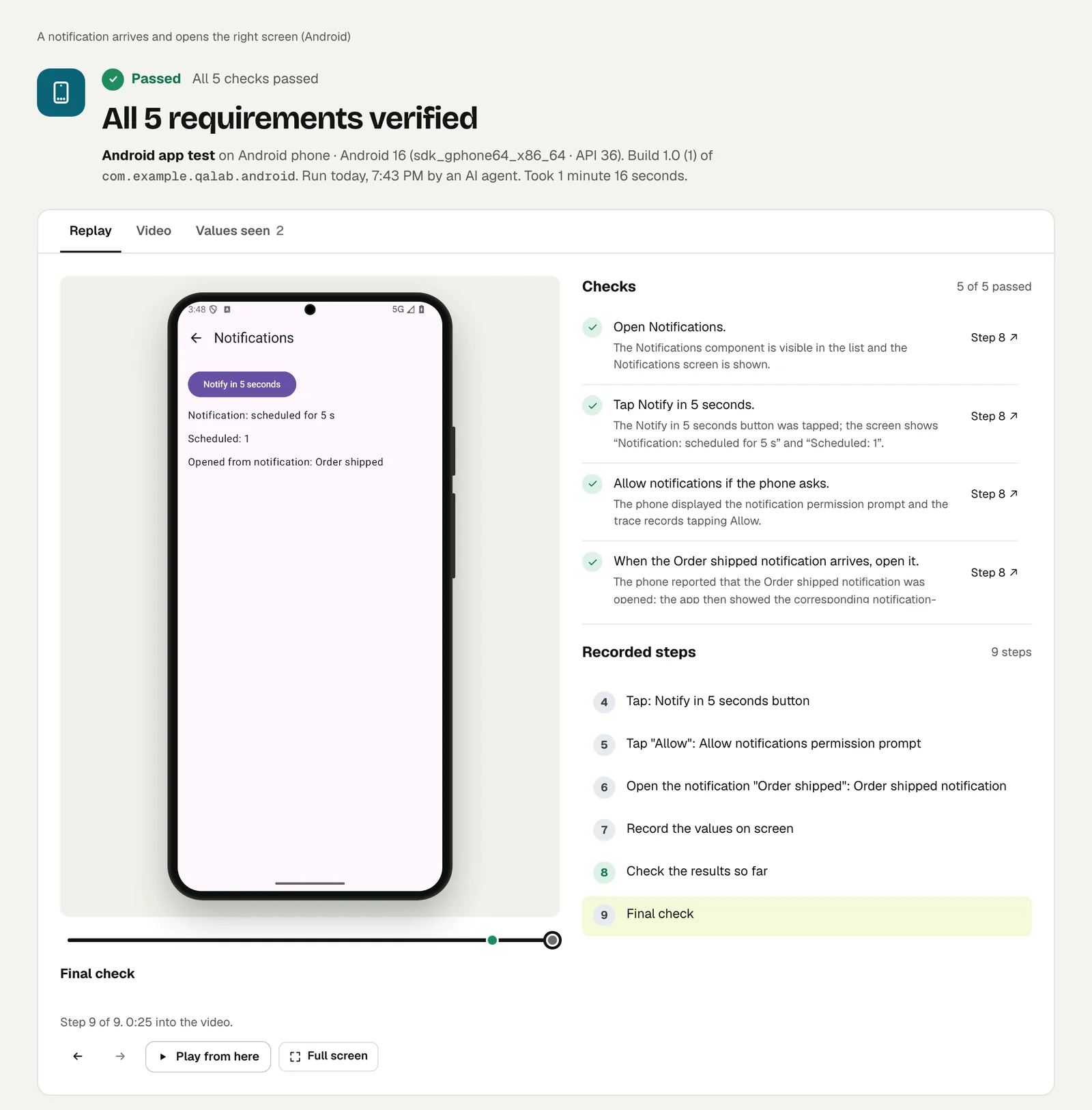
Open the Android run to compare.
What this run does and does not cover#
The notification here is one the app schedules itself. So the run covers everything from the moment a notification is on the phone: the permission prompt, the notification showing up, the tap, and the screen the app opens.
It does not prove that your server sent a push. That is a separate question, and your push provider's delivery log answers it better than any screen can.
Write it for your app#
Name the notification by its text and say what should be on screen after the tap:
Place an order with the stored account "customer".
When the "Your order is confirmed" notification arrives, open it.
Check that the app shows the order that was just placed,
with the same order number as the confirmation screen.
Then cover the cases that behave differently:
- The app is closed. Add "close the app before the notification arrives". Opening from a closed app runs different code in your app than opening from the background.
- The user said no. Write "deny notifications when the phone asks" and check that the app carries on and tells the user what they will miss.
- Older versions. Android has asked for notification permission only since version 13. We ran these same lines on Android 12: no prompt appeared, the check "allow notifications if the phone asks" passed with that reason, and the notification opened the app as before. See that run.
Run it#
Upload a build, choose iPhone app or Android app in New test, and paste your text. Android and iOS apps has the build formats, and Proof, replay and video explains everything on the result page.
This post is one of a series: The hardest parts of mobile app testing, each one run for real.