Test email verification codes, the wrong code and the resend too
A sign-up test that stops at "we sent you a code" proves little. Two real runs read the email, try a wrong code, ask for a new one and finish signing up.
The step that happens outside the browser#
A browser test drives a browser. A verification code arrives somewhere else: in an inbox. To finish the sign-up, the test has to leave the page, find the right message, read six digits out of it and bring them back.
Scripted suites handle that in one of two ways. Some add a mail-testing service and write code around it: create an inbox, wait for a message, pull the code out with a pattern, clean up. MailSlurp, which sells one of those services, describes the usual outcome as suites that look stable until the workflow reaches email, and its Playwright guide puts the flakiness down to shared inboxes, sleep statements and manual clean-up. Others skip the email: one write-up of a hundred-test Playwright suite mocks the verification endpoint so that it always answers success.
A mocked code checks the form. It does not check the email, the code in it, or what the site does with a code that is wrong or out of date. Those are the parts users write to support about.
The test#
Each Testsy run can have a mailbox of its own. Turn on Give this test a mailbox and the run gets an email address nobody else is using, and can read what arrives there. It is on every plan, the free trial included.
The test, as plain text, run in Chrome on a desktop-sized screen:
Sign up with the email address this run owns (the run mailbox).

1. Type the run's email address into the Email address field and click
   Send code. Verify the page says the code was sent to that address.
2. Before reading the email, type 000000 into the 6-digit code field and
   click Verify. Verify the page refuses it with a message that the code
   is not right.
3. Wait for the verification email. Verify its subject is "Your Lab
   verification code" and read the 6-digit code from it.
4. Type that code into the 6-digit code field and click Verify.
5. Verify the page reads "Verified: " followed by the run's email address.
The site is the sign-up page of our practice site. It emails a 6-digit code and checks it on a server, so a wrong code is refused by the server and not by the page.
There is no inbox set-up in the test, no wait time and no pattern for finding the code. "Wait for the verification email" and "read the 6-digit code from it" are the whole instruction.
What happened#
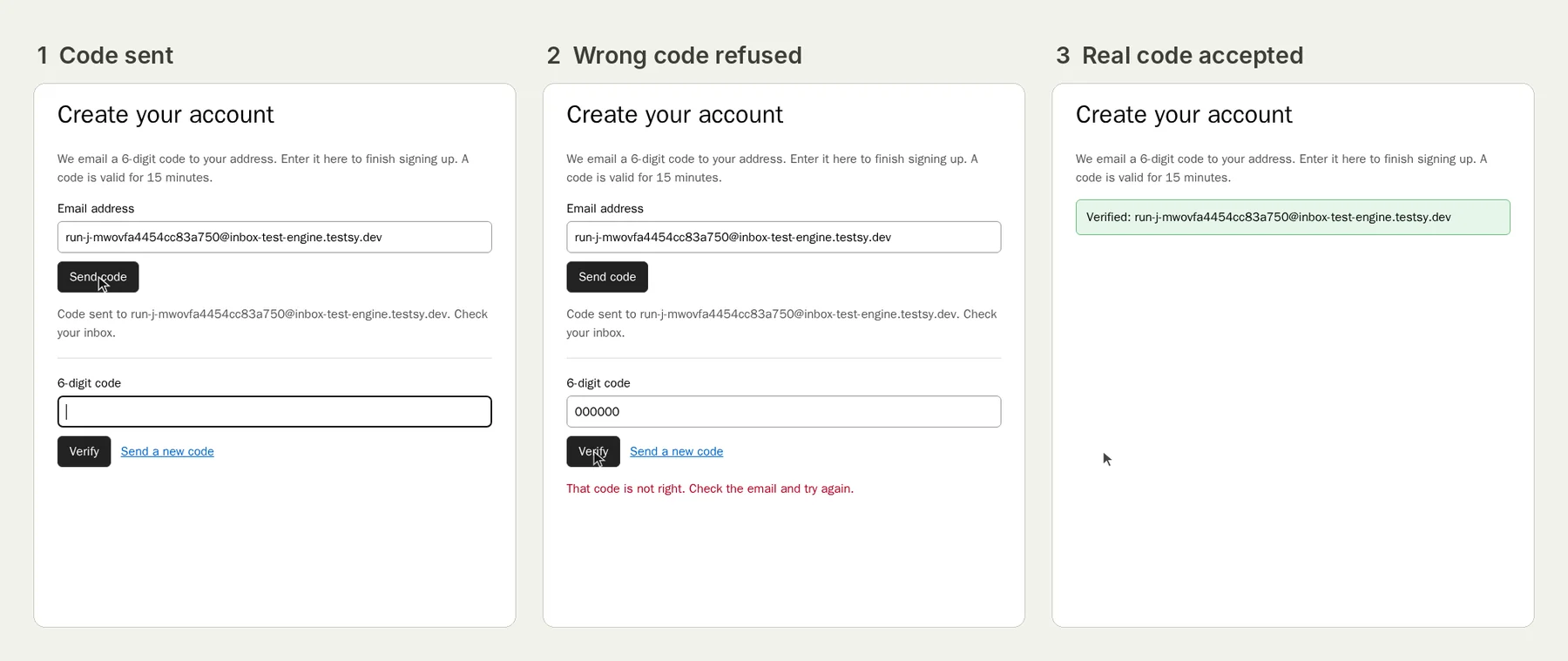
The picture at the top of this page shows three screens from the run: the page confirming where the code went, the wrong code refused, and the account verified.
- The tester typed the run's address, which ends in
@inbox-test-engine.testsy.dev, and pressed Send code. The page answered "Code sent to" that address. - It typed 000000 and pressed Verify. The page answered "That code is not right. Check the email and try again."
- It waited for the email. The subject was "Your Lab verification code" and the code in it was 207090.
- It typed 207090 and pressed Verify.
- The page read "Verified:" and the run's address.
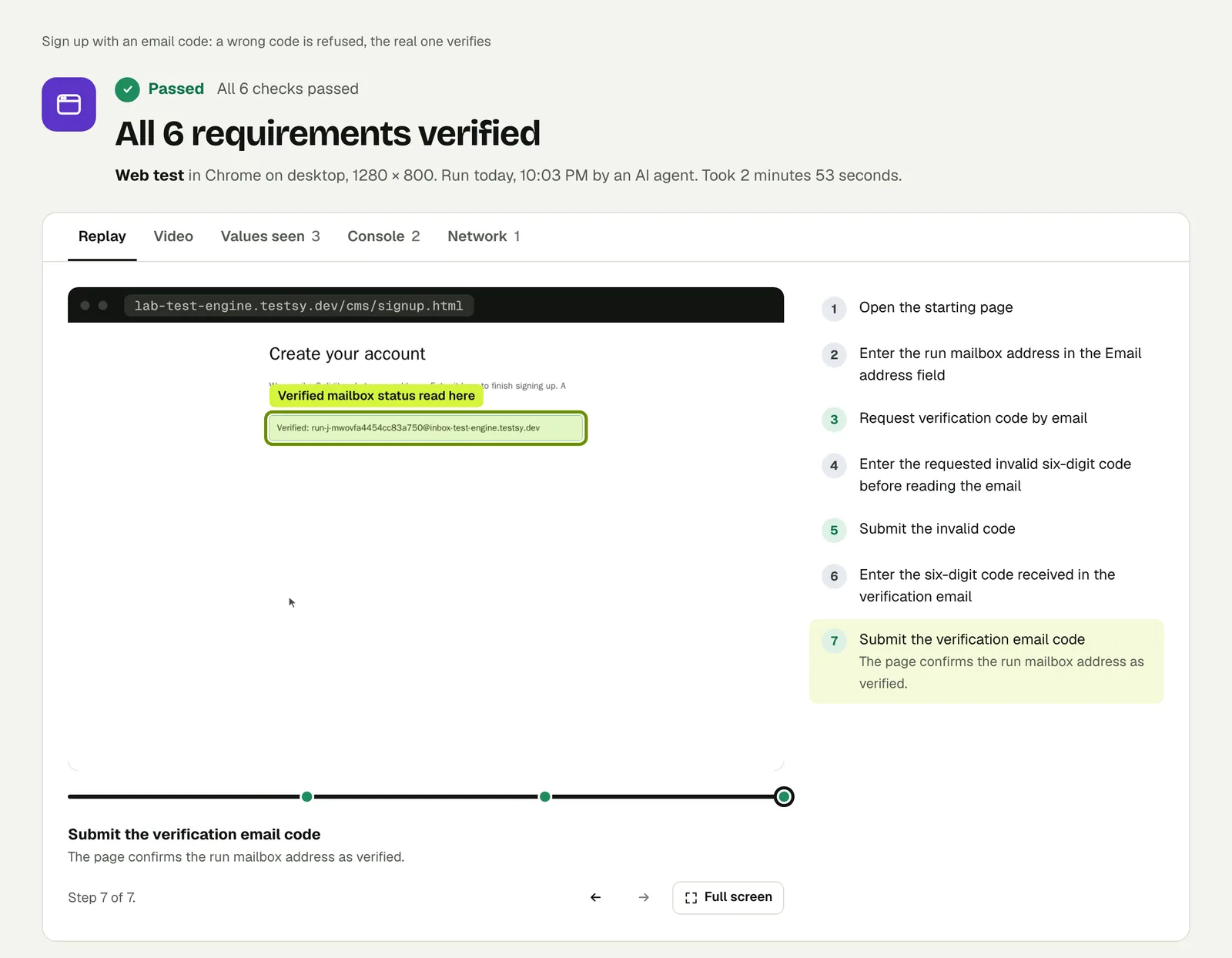
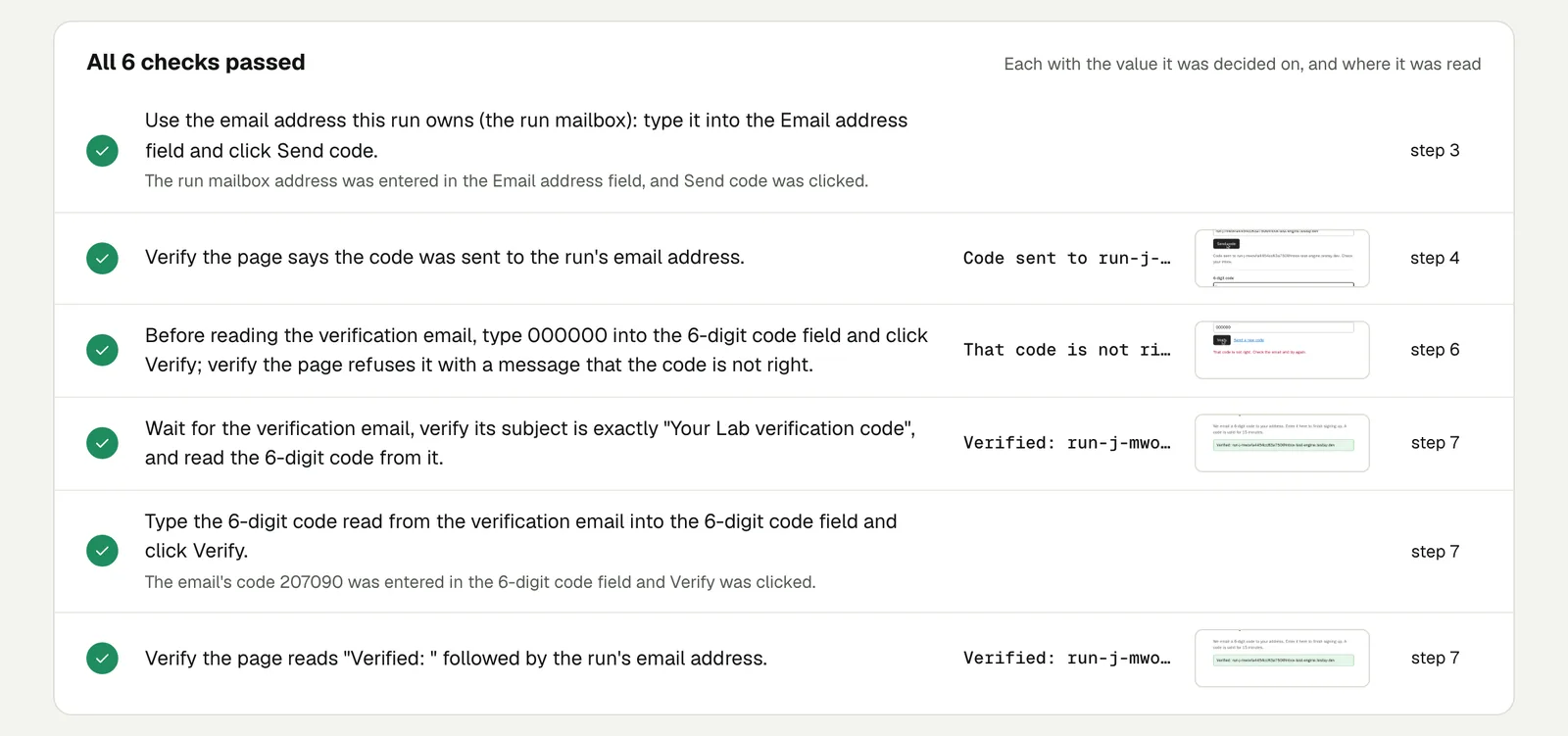
Open the run to step through it. The link is read-only and stays live until 18 February 2027.
In your own workspace the result also has a Messages tab with the email itself: sender, subject, text, the code found in it and the step that used it. A shared link leaves messages out, because an email can hold a link that still works.
The harder case: ask for a second code#
Most sign-up pages have a "send it again" link, and most sites promise that a new code replaces the old one. That promise is rarely tested, because the test has to tell two emails apart and remember which code came from which.
Sign up with the email address this run owns (the run mailbox), and ask
for the code twice.

1. Type the run's email address into the Email address field and click
   Send code.
2. Wait for the verification email and read the 6-digit code from it.
   Call it the first code. Do not type it in yet.
3. Click "Send a new code". Wait for a second verification email and read
   its 6-digit code. Call it the second code. Verify the second code is
   different from the first.
4. Type the first code into the 6-digit code field and click Verify.
   Verify the page refuses it with a message that the code is not right.
5. Type the second code and click Verify. Verify the page reads
   "Verified: " followed by the run's email address.
The first email carried 655861 and the second 386060. The tester typed the first one after the second had arrived, and the page refused it. Then it typed the second, and the account was verified.
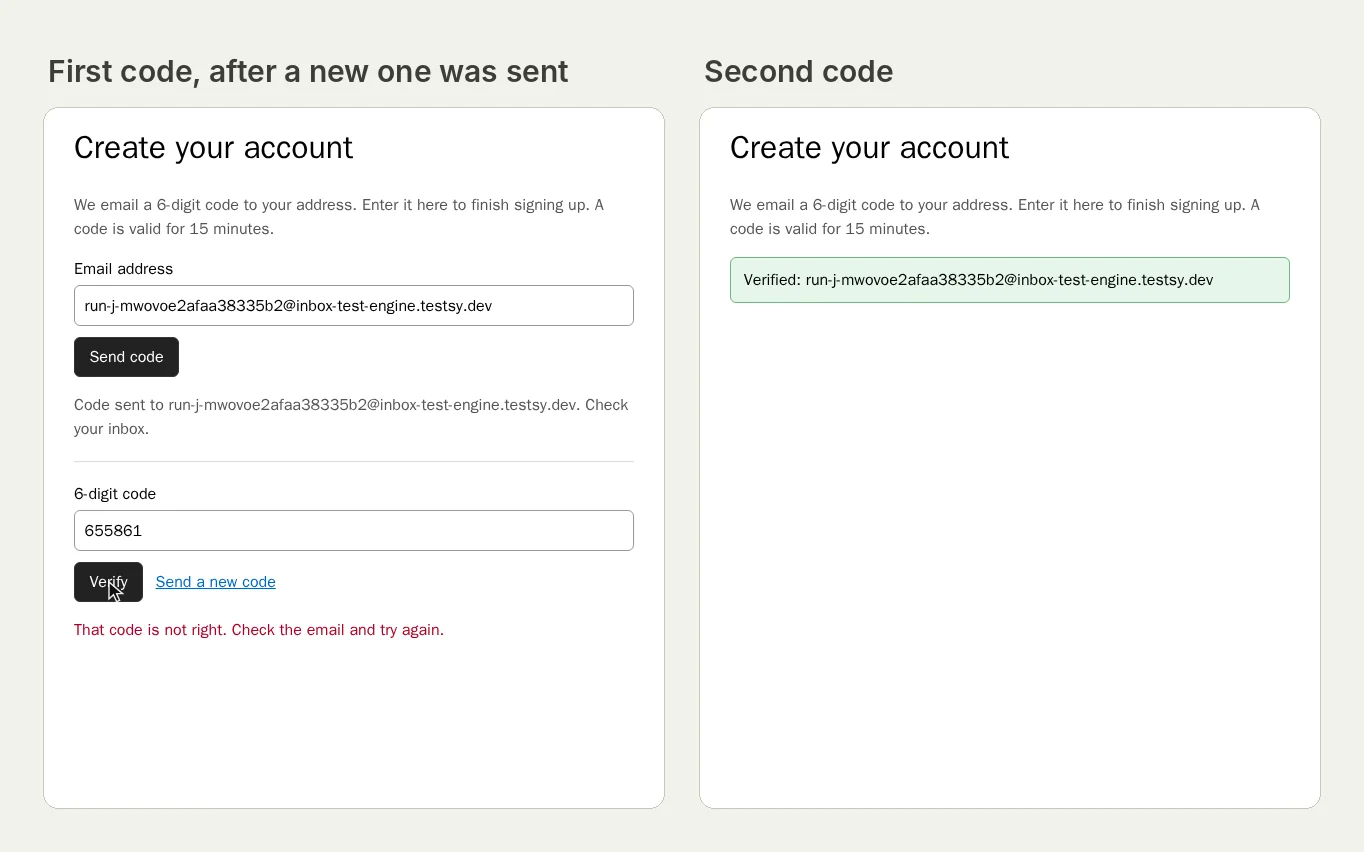
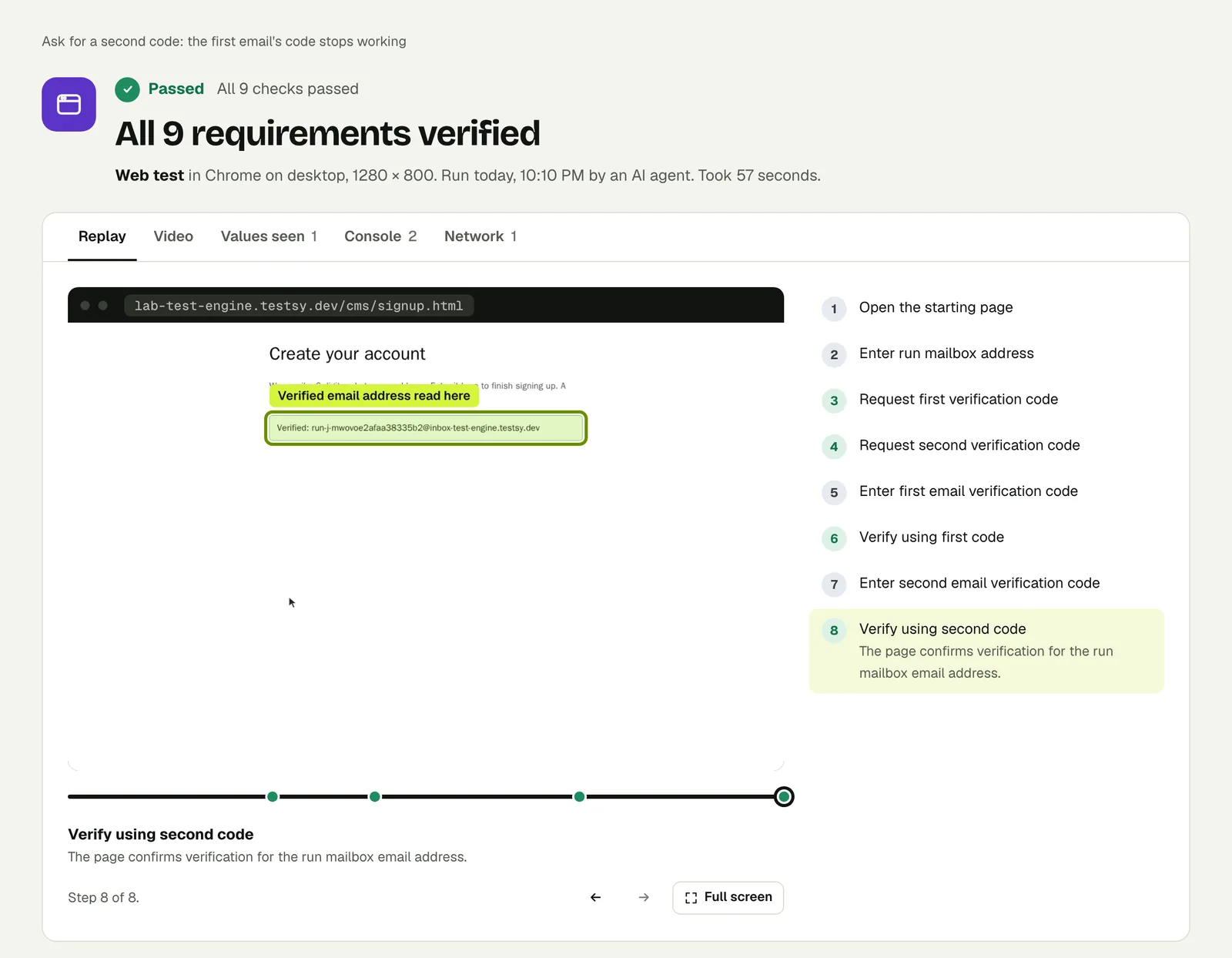
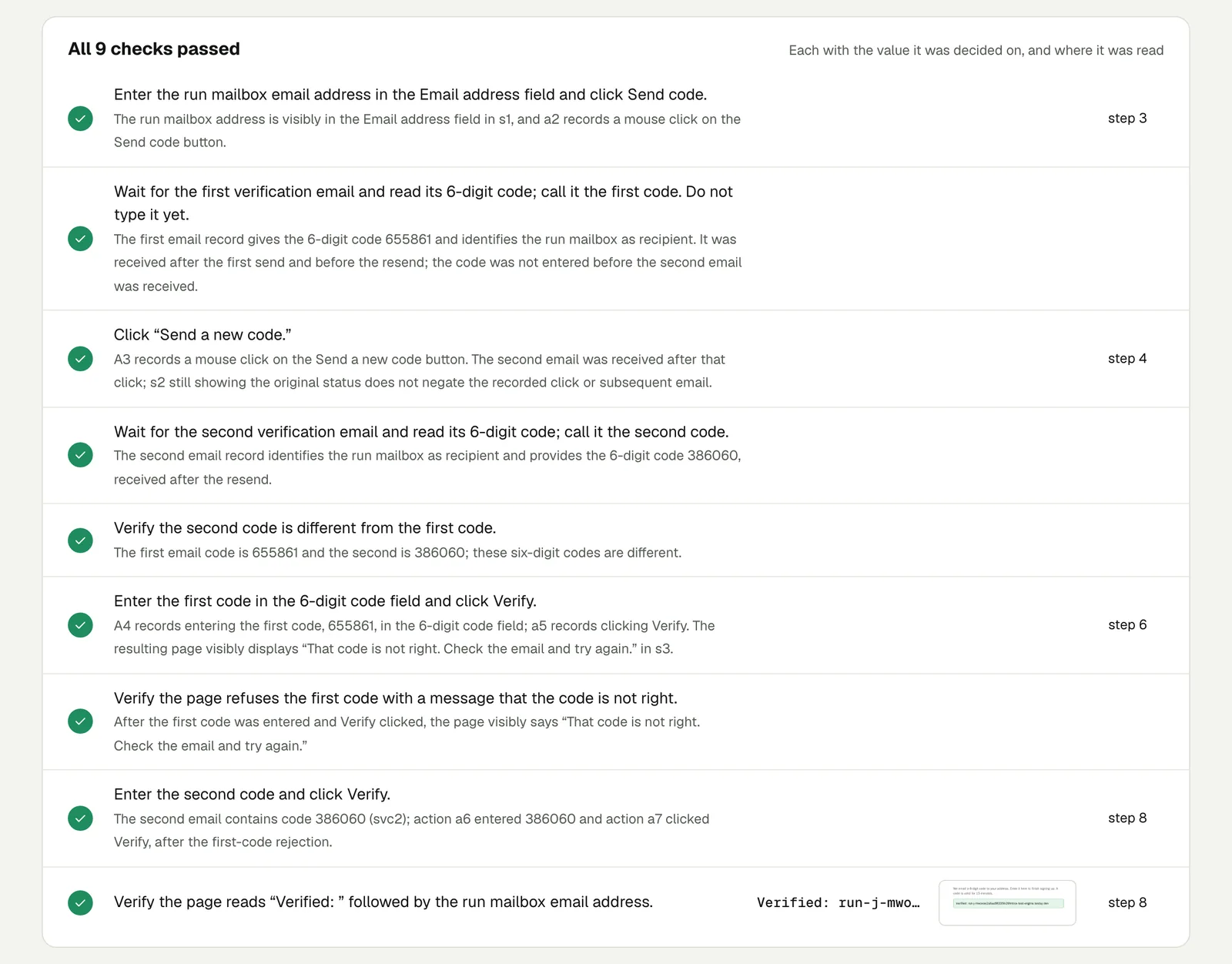
Open the second run. It stays live until 18 February 2027.
What these runs do and do not cover#
- They cover the code, end to end. The site made a code, mailed it, and refused every code except the newest one. The tester read real messages to find that out.
- They do not cover your mail provider. The practice site and the run's mailbox are both ours, so these messages never left our systems. Whether your staging site's email gets through its provider is tested the same way, with this test pointed at your staging site.
- They do not cover an expired code. This page keeps a code for 15 minutes and a run cannot wait that long. Test expiry on a staging site where the lifetime is set to a minute.
- They do not cover a link. A "confirm your email" link works the same way: write "open the link in the email". Test sign-ups that send an email or SMS code has that wording and a table of what to check when it fails.
What about a code sent by SMS?#
On a phone, we ran it: Test SMS code sign-in on Android has a real run where the text message arrives on the phone during the run, Android offers the code to the app, and the app verifies it.
On a website, a run can have its own phone number as well as its own mailbox. Turn on Give this test a phone number, on paid plans, and write "wait for the SMS code and enter it". We have not published a run of that here, because our practice site does not send text messages. Mailbox, phone number and endpoints describes both.
Write it for your app#
Create an account with this run's email address.
Wait for the confirmation email and enter its code.
Check that the app shows the new account's home page.
Sign out, and check that signing up again with the same address
says the address is already registered.On the sign-in page choose "Forgot password" and enter this run's
email address. Open the link in the reset email, set a new password,
and check that the old link no longer works when opened again.Cases worth their own test:
- Five wrong codes in a row. Check the account locks, and what the page says.
- The code from another address. Sign up with one address, then try its code against a second. Adding
+somethingbefore the @ gives a run a second address in the same mailbox. - A changed email address. Change it in settings and check that the confirmation goes to the new address, and that the old one stays in force until it is confirmed.
If your sign-up form only accepts some email domains, allow inbox-test-engine.testsy.dev on staging.
Run it#
Paste your sign-up page's address into New test, turn on the mailbox, and describe the journey. Test signup and email verification is the reference.
This post is one of a series: The hardest parts of web testing, each one run for real.
Filed underWebSign-in and codesForms and checkout