Find unlabeled buttons and tiny tap targets in a mobile app
Apple's App Store now shows accessibility labels on product pages. An audit run on an iPhone, inside a normal test, catches low contrast, missing labels, small targets.
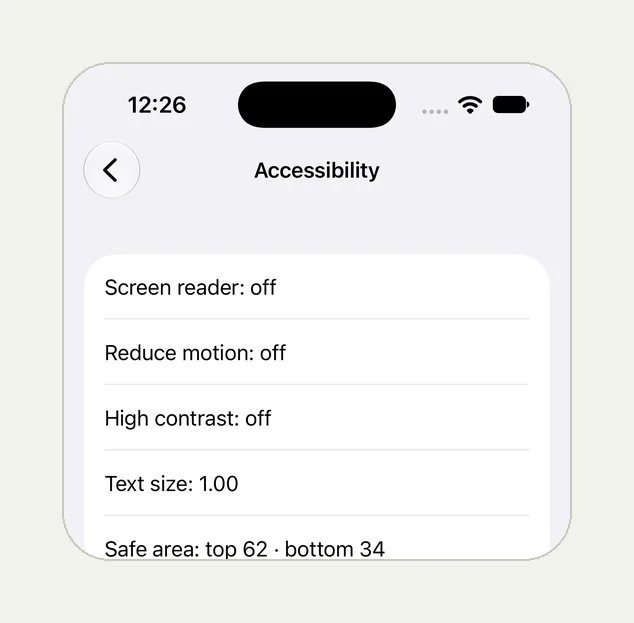
Accessibility is now on the product page#
Apple added Accessibility Nutrition Labels to the App Store: a section on an app's product page that says whether it supports VoiceOver, Voice Control, Larger Text, Sufficient Contrast and more. Developers fill them in through App Store Connect, and Apple asks them to audit the app against its criteria for each feature before claiming support. The labels show on devices running iOS 26 and later.
Claiming "Sufficient Contrast" or "VoiceOver" is now a public promise, checked by the people who rely on it. The faults that break those promises are usually small and repeated: an icon button with no label, so VoiceOver reads "button"; a tap target far below Apple's 44 × 44 point guideline; grey text on a light grey card.
An audit inside an ordinary test#
Xcode's Accessibility Inspector can audit a screen. Testsy's tester can run the same kind of audit on the screen it is looking at, in the middle of a normal test, on an iPhone. We tried it on our practice app QA Lab, whose Accessibility screen has an "Audit sample" box with three planted faults: a heart button with no label, a 20 × 20 point target and low-contrast text. The picture at the top of this page is that screen, from the run.
Open Accessibility in the Phone section and run an accessibility
audit of the screen; verify the audit reports at least one of the
Audit sample box's three faults (the unlabeled ♥ button, the small
20×20 target, the low-contrast text).
The check passed. The tester's reason, word for word: the audit reported "Contrast: Contrast failed — Low contrast text", one of the three faults. Open the run (live until 18 February 2027); the same run went on to test what survives a reinstall, which has its own post.
What that does and does not tell you#
Be precise about what passed. The test asked for at least one of three faults, and the reason names one: low contrast. It does not say the audit found the other two. If you want each fault caught, write a check for each, and read the reasons:
Run an accessibility audit of the Checkout screen and record every
issue it reports. Check it reports no element without a label and
no contrast failure.
An audit is a floor, not a verdict on accessibility. It finds what a machine can see: labels, sizes, contrast. Whether VoiceOver users can actually complete a purchase in a sensible order is a separate test, and in the end a question for people who use VoiceOver every day. Apple's own guidance for the labels is about common tasks, not single screens.
Where to put audits#
- The screens of your common tasks, the ones Apple's label criteria are about: sign-in, the main list, the detail screen, checkout.
- After a redesign, when colours and icon buttons change at once (tests that survive a redesign).
- With Larger Text on: our rotation, dark mode and large text run sets the phone's text size to the largest from within the test.
This post is part of Mobile release testing for app teams.
Filed underiPhone and iPadDevices and versionsApp builds and review