Test file uploads: a good file, a fake one and one too big
Upload tests need a folder of awkward files nobody keeps. Two plain-language tests upload a photo, a text file named .jpg, a 52 MB image, two CSVs and two documents.
An upload has more wrong answers than right ones#
The happy path of an upload is one file. The rest of the feature is everything that should be refused: the wrong type, the right extension on the wrong content, the file that is too big, the CSV with a row that has too few columns.
Those are the cases users hit, and they are tedious to test for a practical reason. Somebody has to own the files. A text file renamed to .jpg. An image over the size limit. A CSV broken in three specific ways. They live on one tester's laptop, and the scripted version needs them checked into a repository and kept in step with the limits in the code.
Test 1: a profile photo, three ways#
Written as plain text and run in Chrome on a desktop-sized screen. We attached no files to this test.
Open Profile photo and upload a landscape JPEG photo. Verify that the
preview shows the photo together with its file name and its pixel
dimensions, then save it and verify the confirmation Profile photo
updated. Then try to upload a file that is not really an image (a text
file with a .jpg name). Verify that the page shows an error message and
does not show a preview. Then try a file that is too large (over 5 MB)
and verify the page rejects it with a size error.
The site is Web Lab, our practice site. Its Profile photo page accepts JPEG, PNG or WebP up to 5 MB.
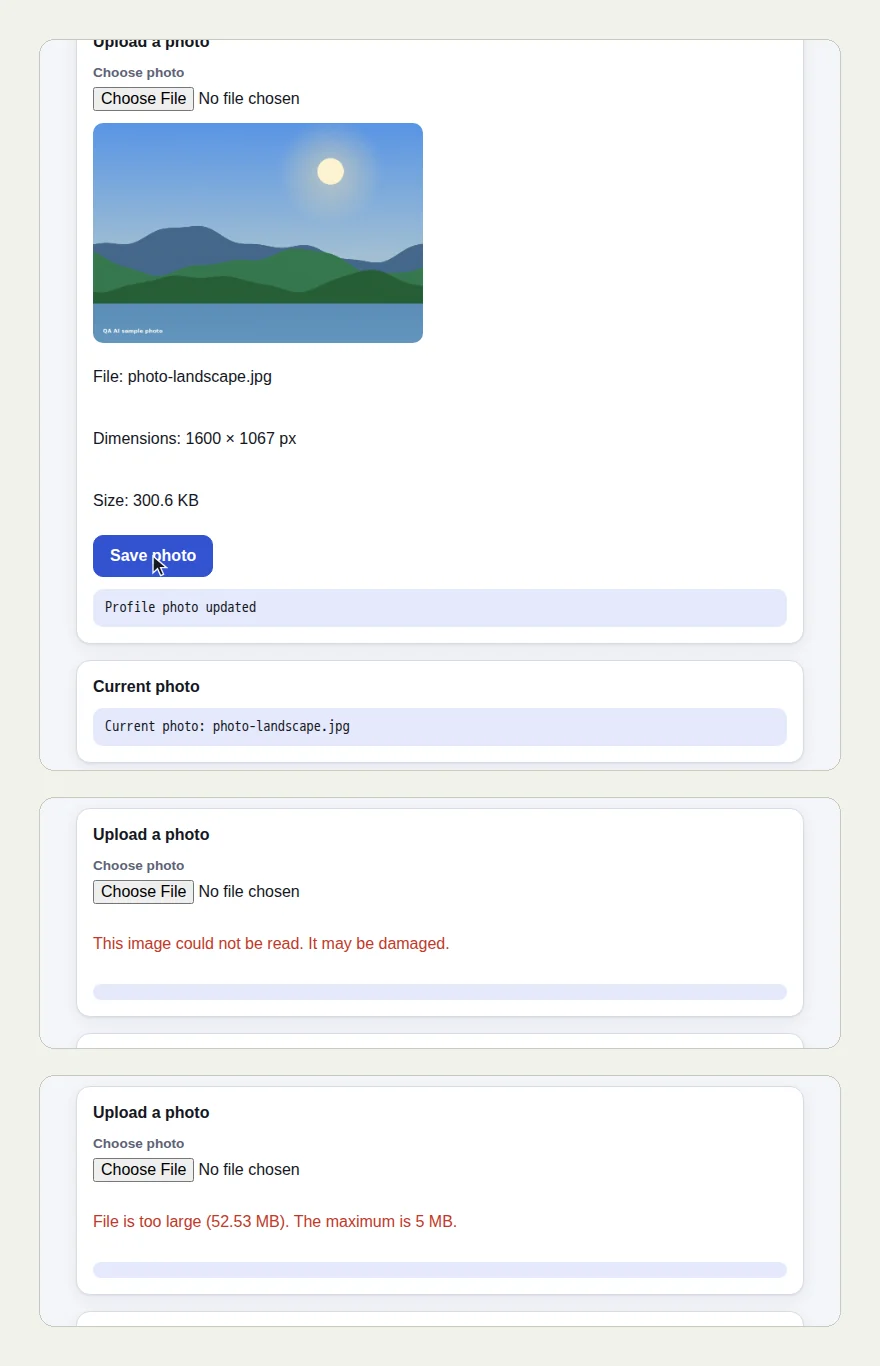
The picture at the top of this page shows three screens from the run: the saved photo with its name and size, the error for the fake image, and the error for the large one.
The test describes the files in words: "a landscape JPEG photo", "a text file with a .jpg name", "a file that is too large (over 5 MB)". The tester used sample files that fit each description:
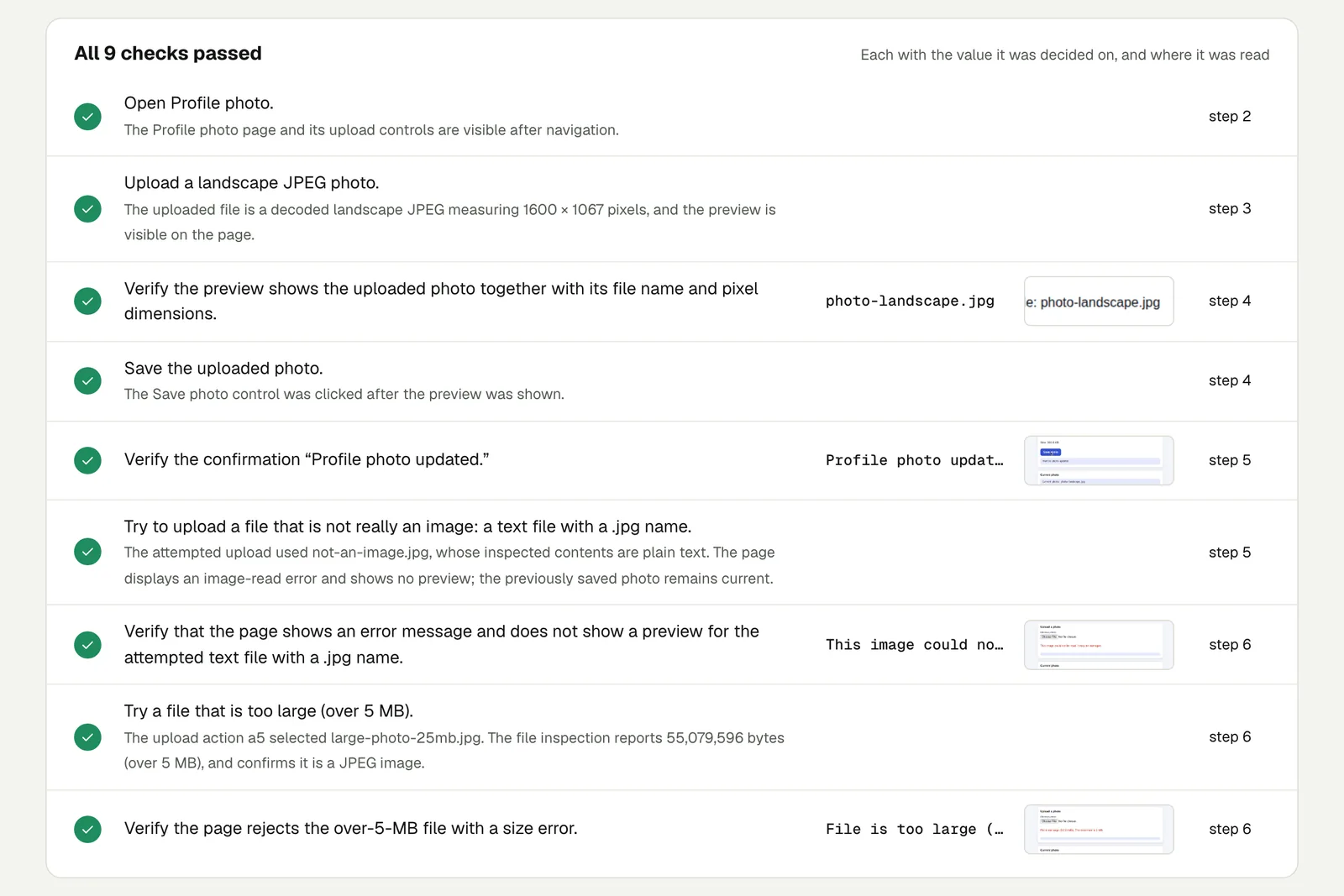
photo-landscape.jpg, a real JPEG of 1600 × 1067 pixels. The page showed the preview, the name and "1600 × 1067 px", and after Save photo, "Profile photo updated".not-an-image.jpg, whose contents are plain text. The page said "This image could not be read. It may be damaged." and showed no preview.large-photo-25mb.jpg, a real image of 55,079,596 bytes. The page said "File is too large (52.53 MB). The maximum is 5 MB."
The result checks both sides of each attempt. For the fake image it confirms the file really was text, so the page was right to refuse it, and that the previously saved photo was still the current one.
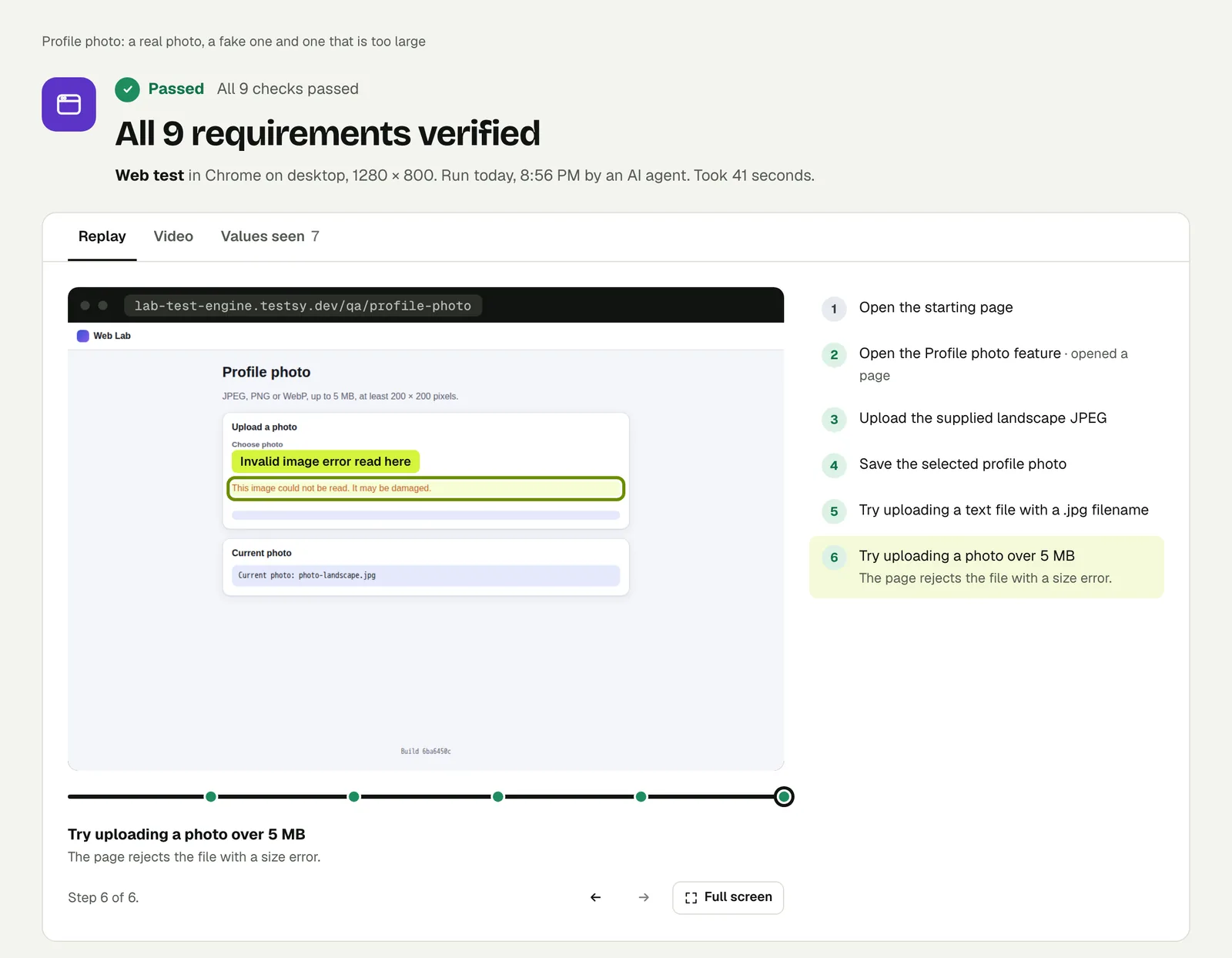
Open the run. The link is read-only and stays live until 18 February 2027.
Test 2: a CSV import, a broken CSV, and two documents dropped in#
Open Import contacts and import a CSV file of 25 contacts. Verify the
page reports that 25 contacts were imported and that the first imported
contact's email is shown in the imported contacts table. Then import a
malformed CSV file (rows with missing or extra columns). Verify that the
page reports the rejected rows with their row numbers instead of
importing them silently. Then go back to Home, open Documents and drag
and drop a PDF document and a Word document onto the drop zone. Verify
that both appear in the uploaded documents table with their file names
and the status Uploaded.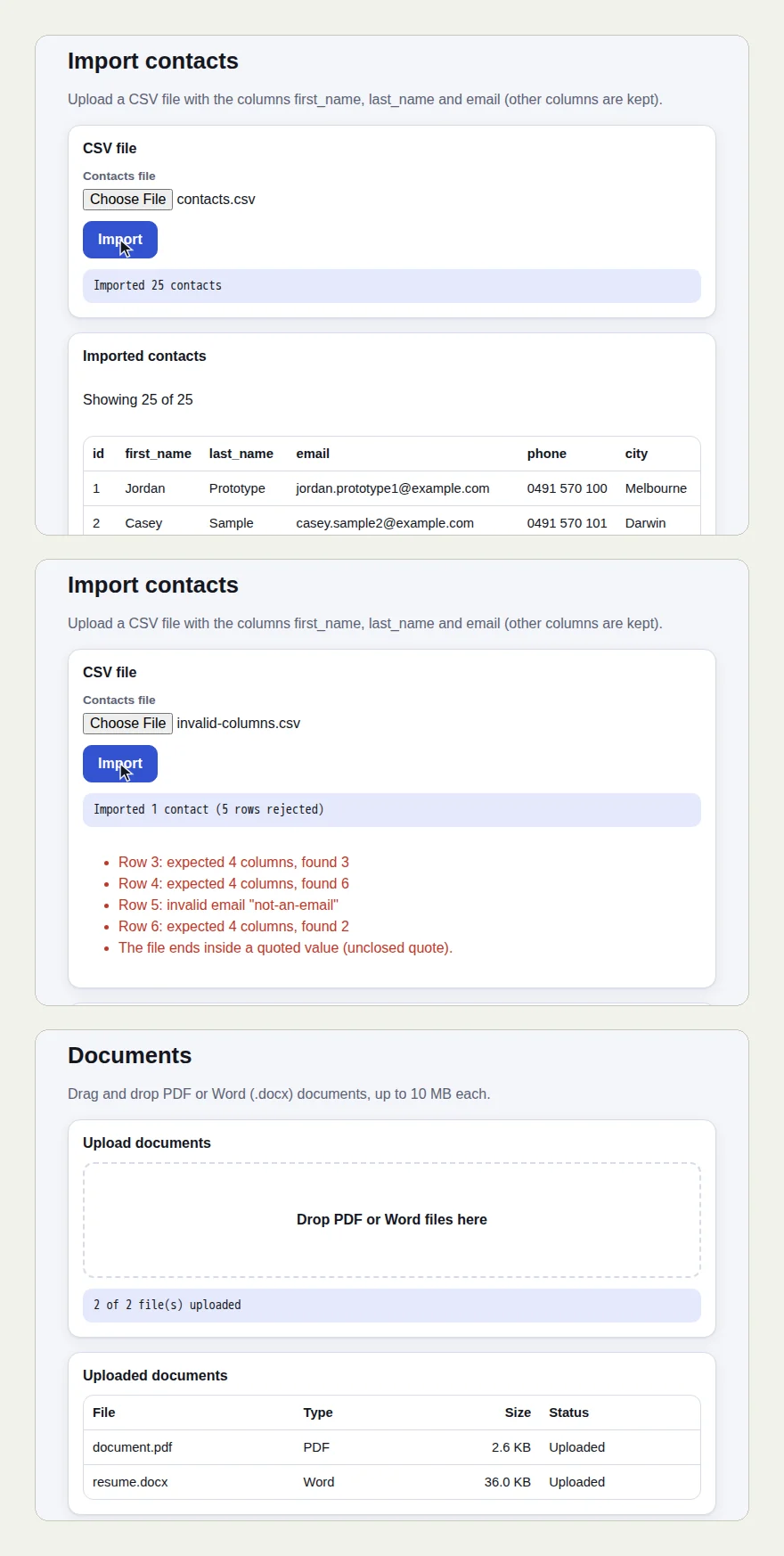
The good file imported 25 contacts. The broken one imported 1 and rejected 5, and the page listed why: "Row 3: expected 4 columns, found 3", "Row 4: expected 4 columns, found 6", "Row 5: invalid email", and so on. The check passed because the page named the rows. An import that had quietly skipped them would have failed it.
The third part is a drag and drop, not a file chooser. The tester dropped document.pdf and resume.docx onto the drop zone, and both appeared in the table as "Uploaded".
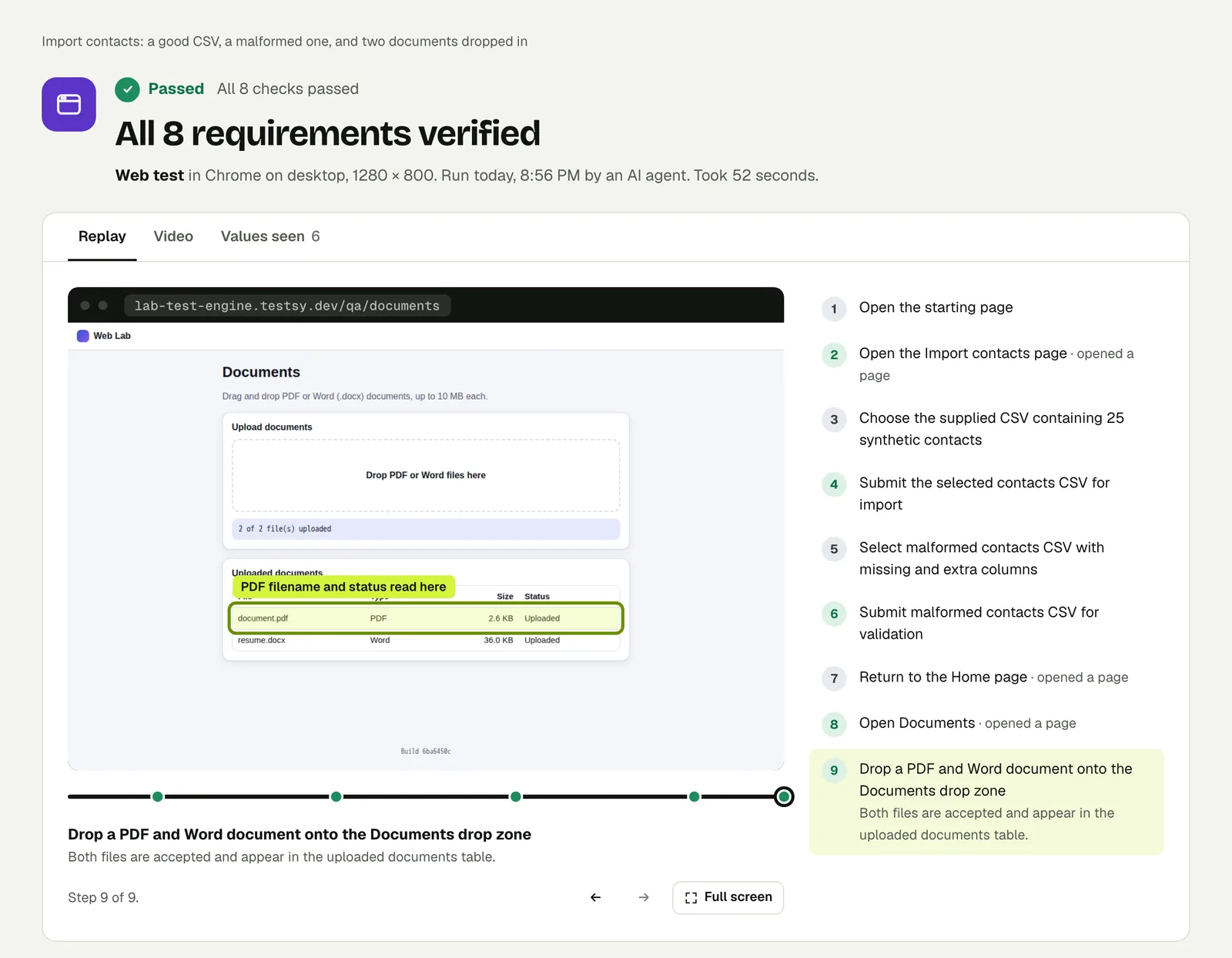
Open the run to step through it.
Your own files#
When the test needs a particular file, such as last month's real export or a document in your own template, attach it to the test and name it in a step: "Upload orders-march.csv on the import page". A test can carry up to 10 files of up to 25 MB each. Test files has the details.
Write it for your app#
Start from your upload's rules and write one sentence per rule:
Open Settings and upload a PNG logo. Check that the header shows it.
Then try a PDF and check that the page says only images are accepted.
Then try an image over 2 MB and check for the size error.
Check that the first logo is still the one in the header.
The last line matters. A refused upload should leave things as they were.
Run it#
Paste your site's address into New test, describe the uploads, and run it. Write a test covers wording steps and checks.
This post is one of a series: The hardest parts of web testing, each one run for real.
Filed underWebFiles and media