Test what is inside a download: CSV, Excel, PDF and ZIP
A file that arrives is not a file that is right. Two plain-language tests download five files, open each one and compare what is inside with what the page shows.
The download nobody opens#
Export buttons are tested by clicking them. The click works, a file appears, the test passes. Nobody opens the file.
So the bugs live inside it. The CSV has eleven rows and the table has twelve. The Excel sheet is named "Sheet1" and the import on the other side expects "Customers". The invoice total in the PDF is not the total on the screen. The ZIP is missing one of the files it lists.
Browser automation is poor at this by design. Selenium's own documentation files downloads under discouraged practices: the browser can start a download, and after that the file is outside what the tool controls. The usual advice is to fetch the file some other way and parse it in code. That is a second program to write and maintain, per file type.
Test 1: a CSV and an Excel file against the table on the page#
Written as plain text and run in Chrome on a desktop-sized screen:
Open Exports and click Export CSV. Verify that a CSV file is downloaded,
that it has a header row with the columns id, name, email, city and
balance, and that it contains 12 customer rows. Open the downloaded file
and verify that its first customer's name and balance match the first
customer shown in the table on the page. Then click Export Excel.
Verify that the downloaded file is an Excel workbook with a sheet named
Customers containing 12 customer rows, and that the email of customer 7
in the workbook matches customer 7 in the table on the page.
The site is Web Lab, our practice site. Its Exports page has a table of 12 customers and a row of download buttons.
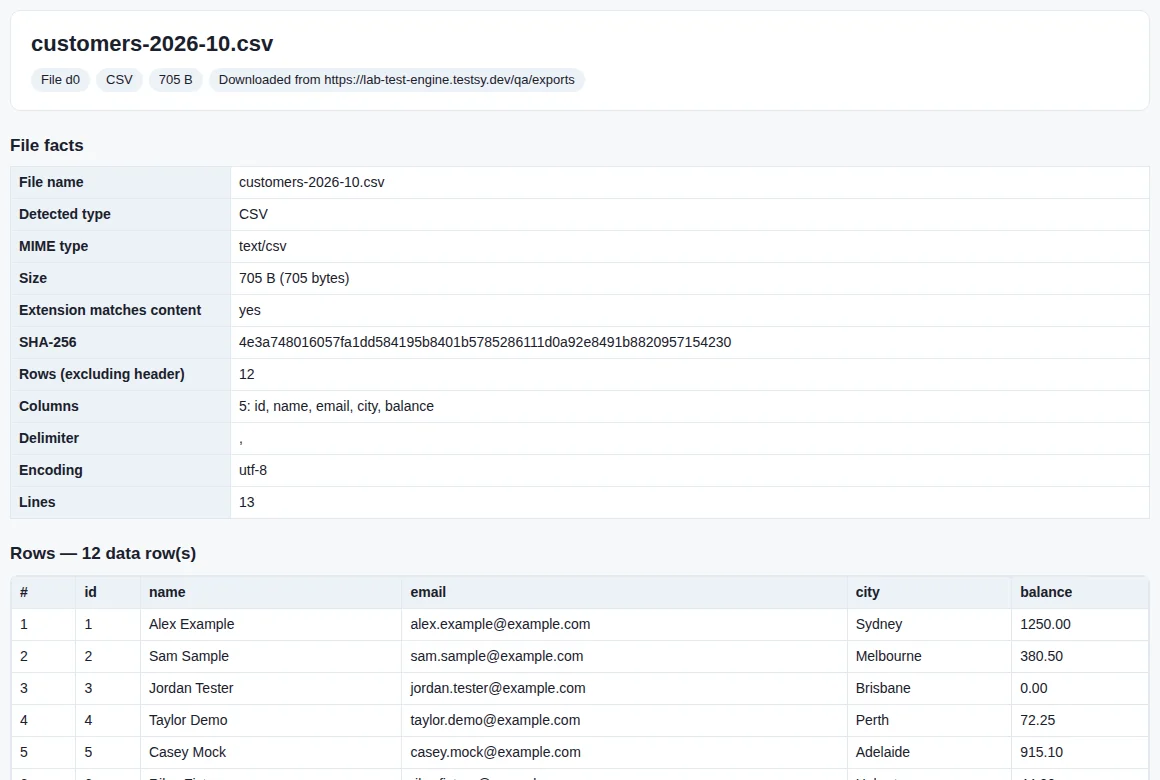
The picture at the top of this page is what the tester saw when it opened the CSV: the file's real type, its size, its columns, its 12 rows, and then the rows themselves. "Extension matches content: yes" is the line that catches a file named .csv that is really something else.
The Excel file got the same treatment:
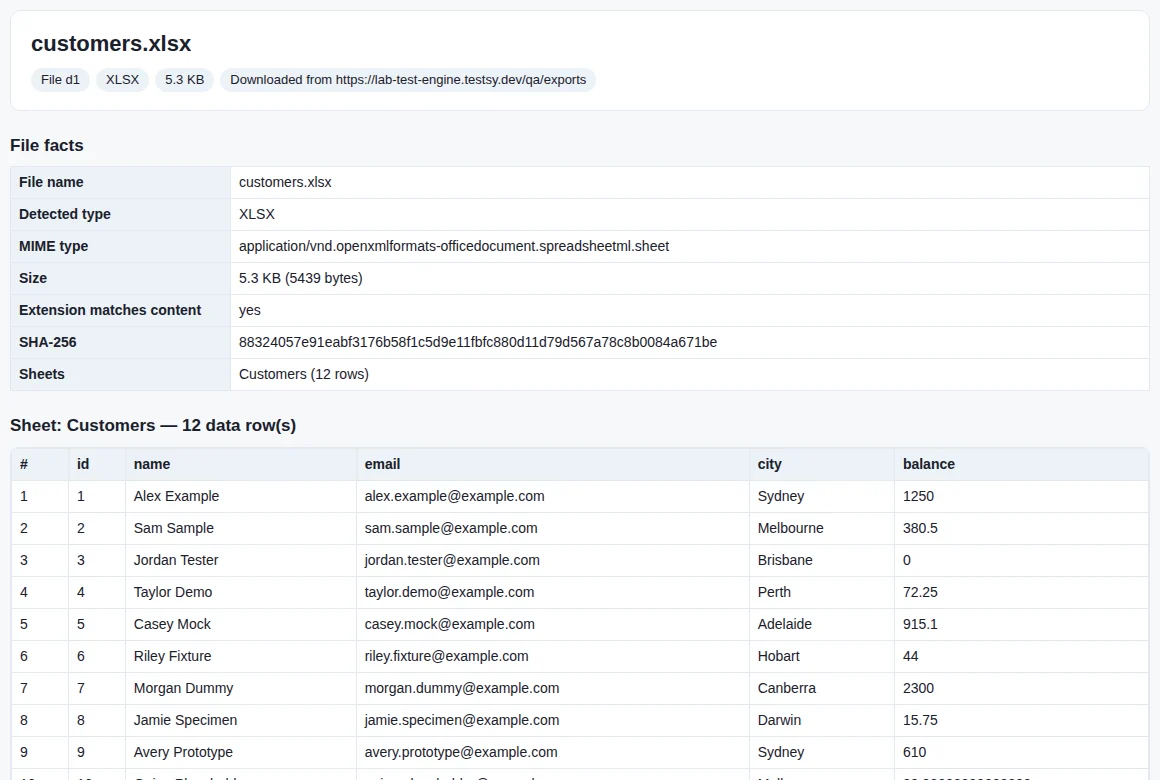
Then the comparisons. The tester had noted the first customer and customer 7 from the page before downloading anything. The CSV's first row was Alex Example with a balance of 1250.00, and the page showed Alex Example with $1,250.00. The result says they match as numbers and notes that the formatting differs. Customer 7's email in the workbook was the same as on the page.
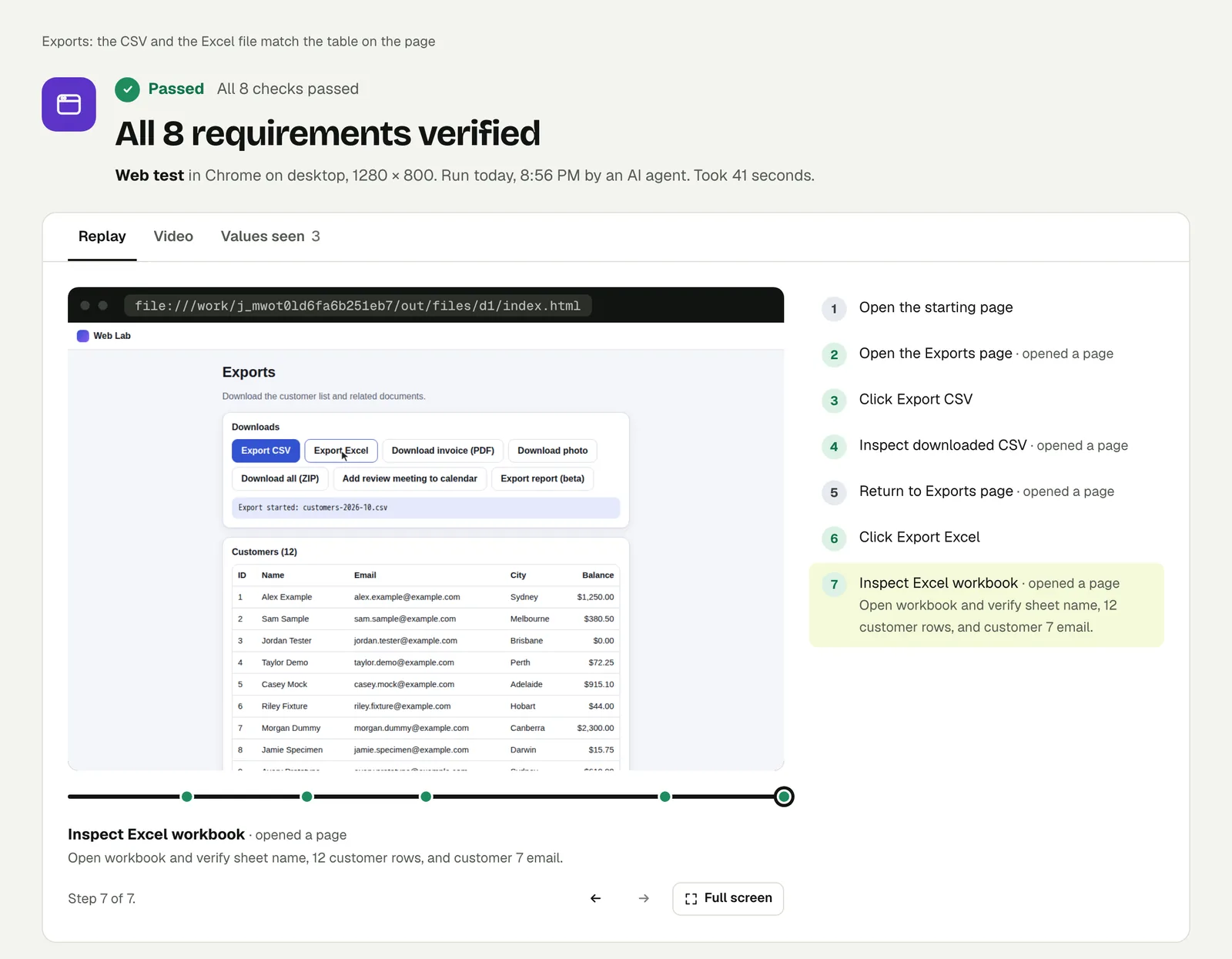
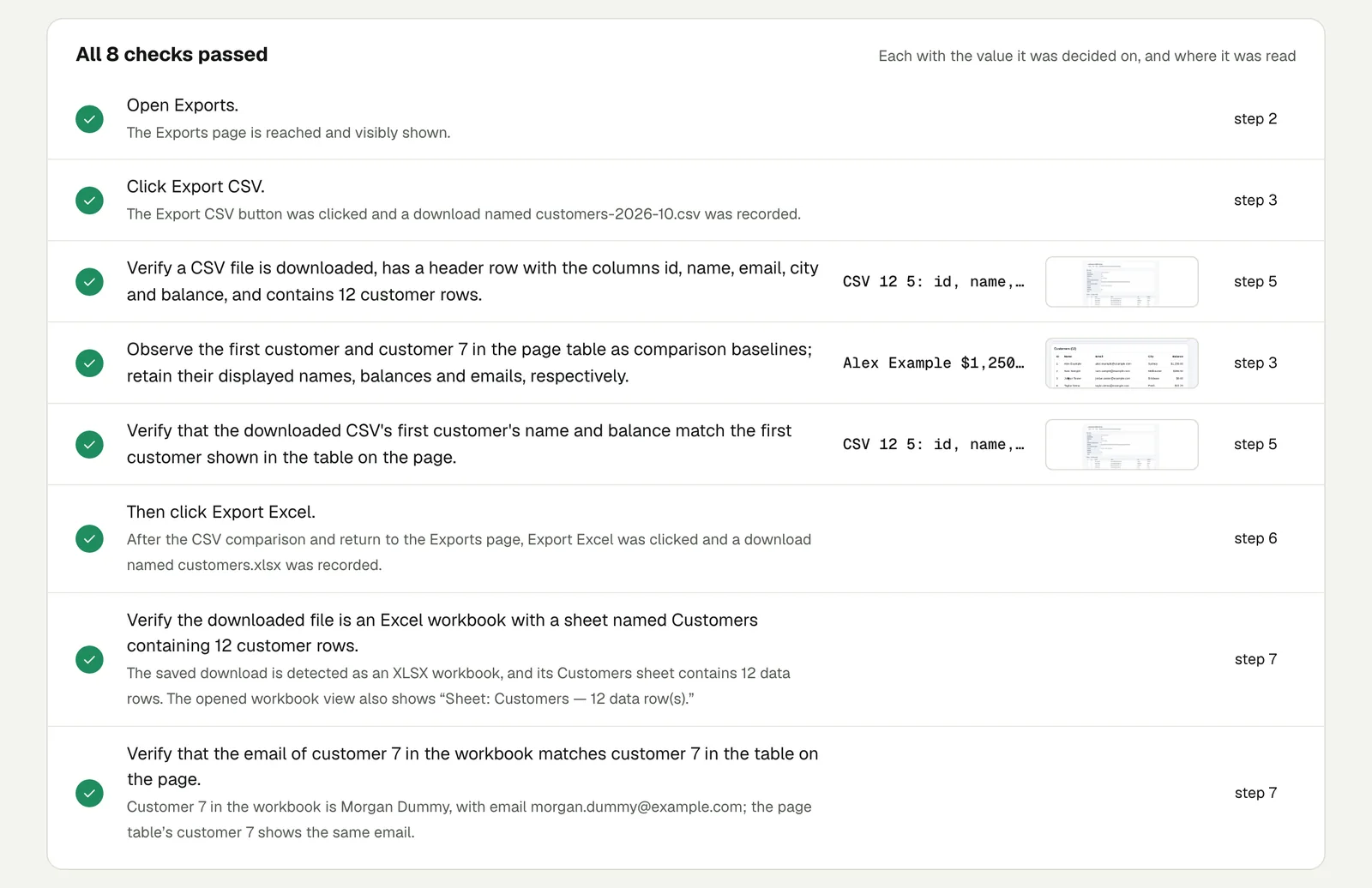
Open the run. The link is read-only and stays live until 18 February 2027.
Test 2: a PDF, a photo and a ZIP#
Open Exports and download the invoice PDF. Verify that the downloaded
file is a valid PDF with 2 pages, that it shows the invoice number
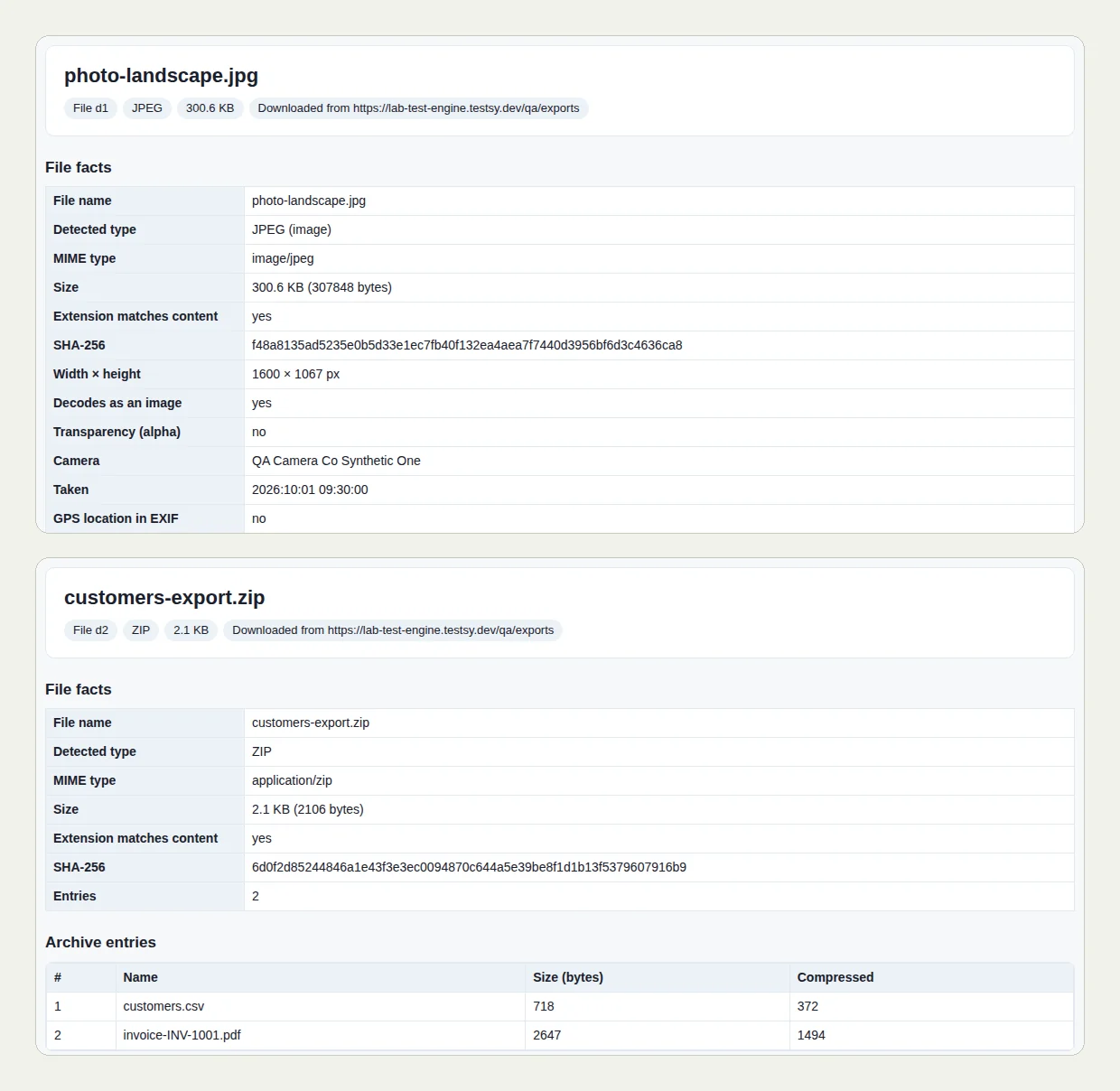
INV-1001, and that its total is $160.35. Then download the photo and
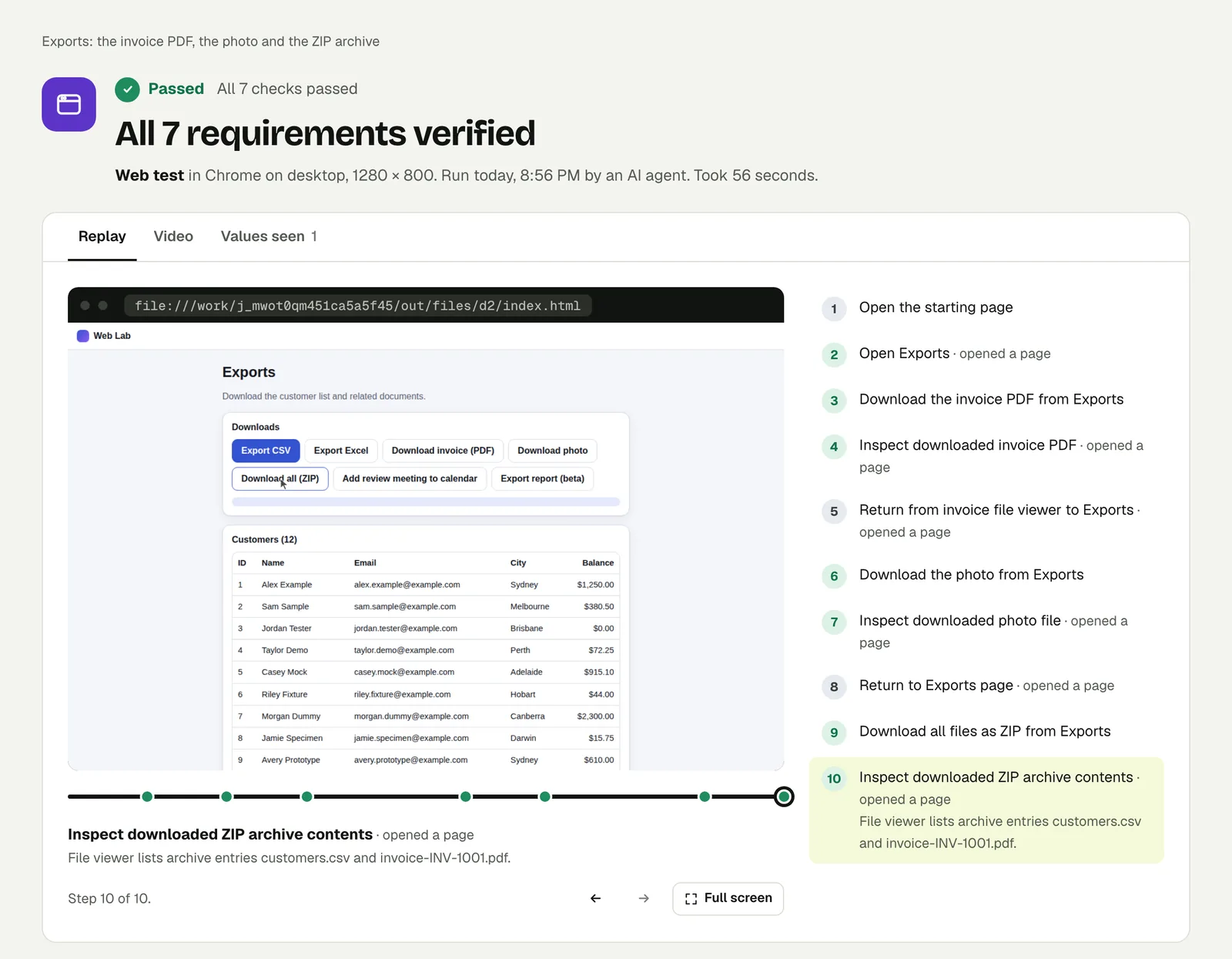
verify it is a JPEG image of 1600 by 1067 pixels. Then download all as
ZIP and verify the archive contains customers.csv and
invoice-INV-1001.pdf.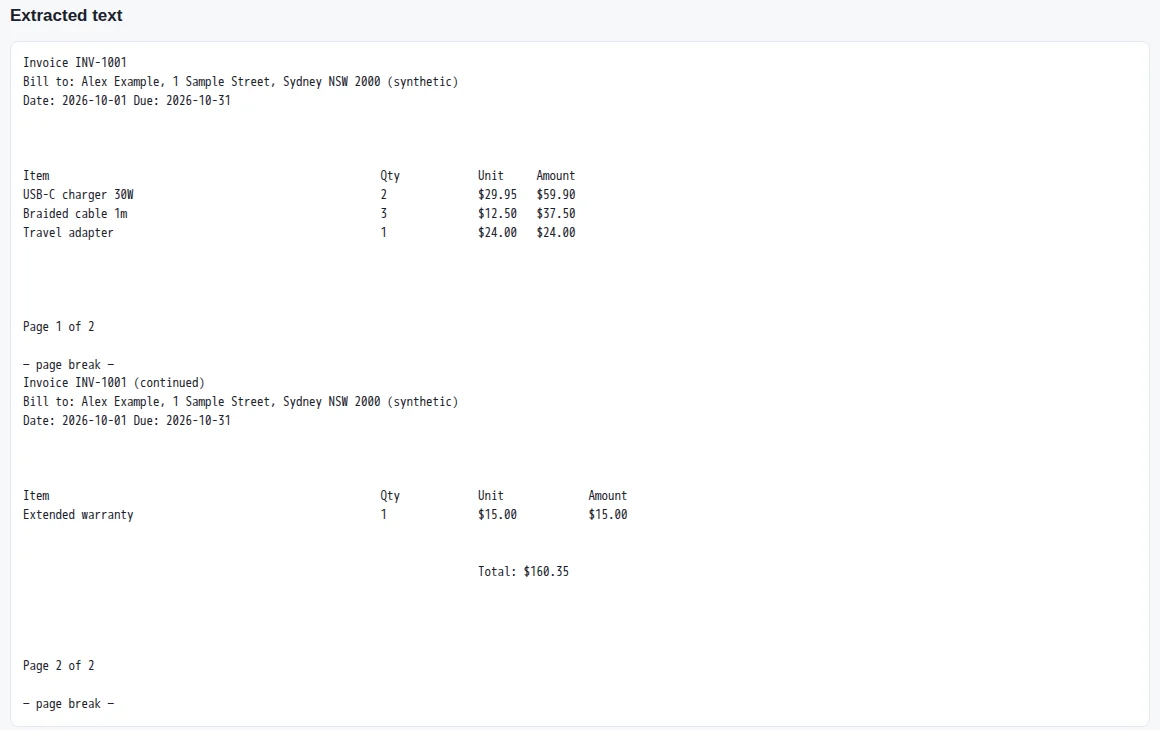
The PDF check is three facts: it is a real PDF, it has 2 pages, and the text on it includes the invoice number and the total. The total is on page 2, after the page break.
Open the run to see each file as the tester saw it.
When the file is wrong#
The same page has a planted bug: an Export report (beta) button whose file is named report.csv and contains an HTML error page. A test that checks the file name passes it. We wrote that case up in Making an AI tester prove its verdicts, and you can open the failed run.
Write it for your app#
Say what should be in the file, and tie at least one value to something on the screen:
Sign in with the stored account "admin" and open Orders.
Filter to March and note the number of orders and the total shown.
Click Export CSV.
Check that the file has one row per order, the same number as on the page,
and that the sum of its total column equals the total on the page.
Good checks to copy:
- The count. Rows in the file against rows on the page. Off-by-one exports are common.
- One value end to end. Pick a row, and compare a field in the file with the page.
- The type. "Is a valid PDF" or "is an Excel workbook" catches the error page saved under a friendly name.
- A file that should not open. For a password-protected export, check that it is.
Run it#
Paste your site's address into New test and describe the export. Signing in uses a stored account, never a password in the test text. Steps, checks and values explains how values from the page and the file are recorded.
This post is one of a series: The hardest parts of web testing, each one run for real.
Filed underWebFiles and media