Turn a failed test into a fix prompt for your coding agent
Describing a bug to an AI agent is where fixes go wrong. Copy the fix prompt from a failed run instead: the check, what was seen, the steps and the proof.
The bug report is the weak link#
When something breaks, you describe it to the agent: "the export is broken". The agent guesses what you mean, changes something, and says it is fixed. Half the time it fixed a different thing.
The problem is not the agent. A bug report needs four facts: what you expected, what you saw, how to get there, and proof. People leave out at least one, and the agent fills the gap with an assumption.
What the fix prompt holds#
Every Testsy result that did not pass has Copy fix prompt. It writes those four facts for you from the run itself. The shape, from the docs:
Testsy test "Task title persists" did not pass on app.example.com.
Failed check: The task keeps its saved title after reload
What the tester saw: The task title became "Untitled" after reload
Values read: saved title = Release smoke sample; title after reload = Untitled
Steps: Sign in → Create the task → Save → Reload → Inspect the task
Proof: step 5 of the replay, https://app.testsy.dev/o/…/runs/j_…
Find the cause in the code and fix it. Explain what was wrong.
That one is illustrative. A real fix prompt uses the actual run's check, values and evidence. For an app that crashed, it adds the error, the step it came after and the top of the stack trace.
A real failure to try it on#
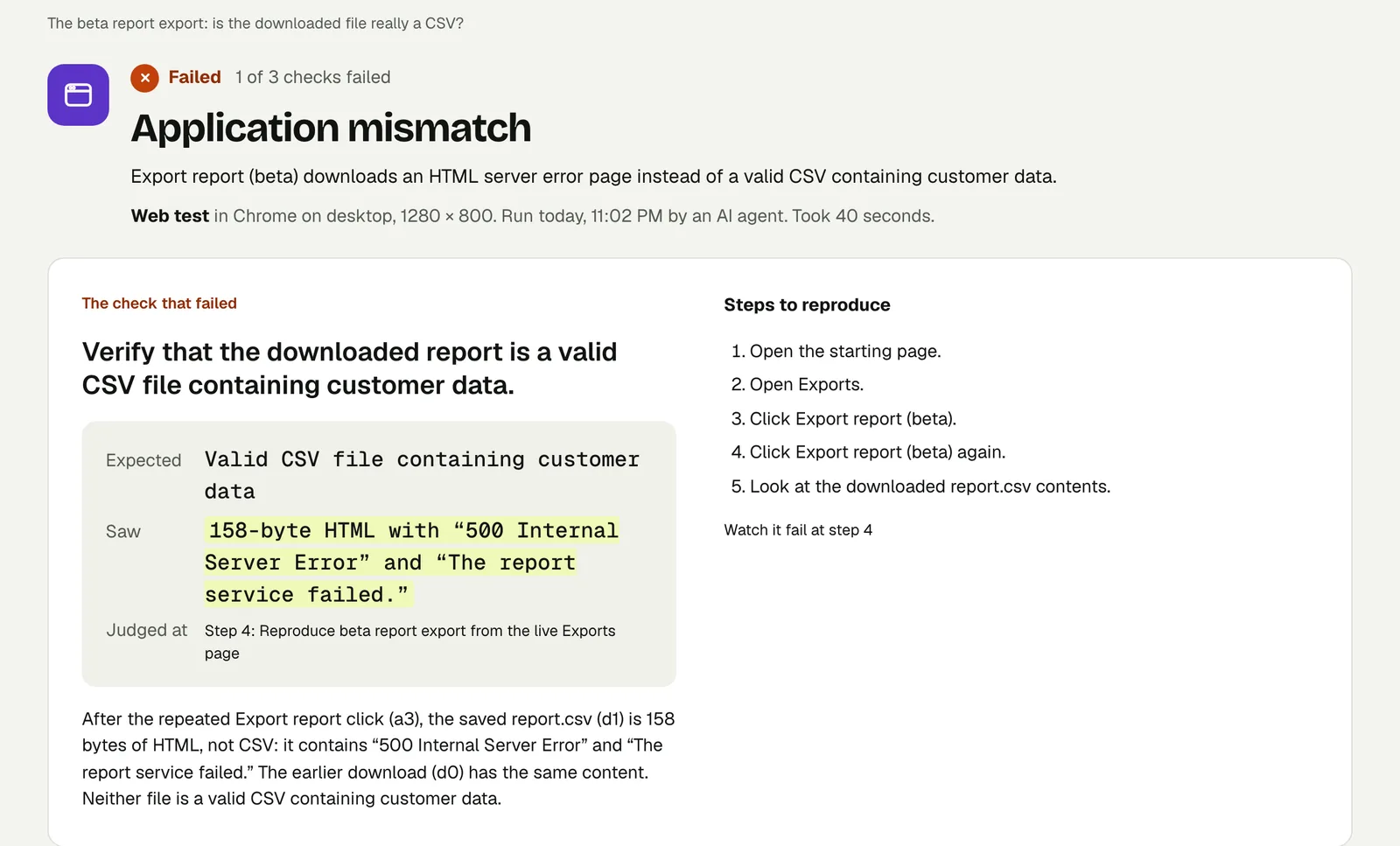
We planted a bug on our practice site: an export that says "Export started: report.csv" and then downloads an error page. This is the run that caught it.
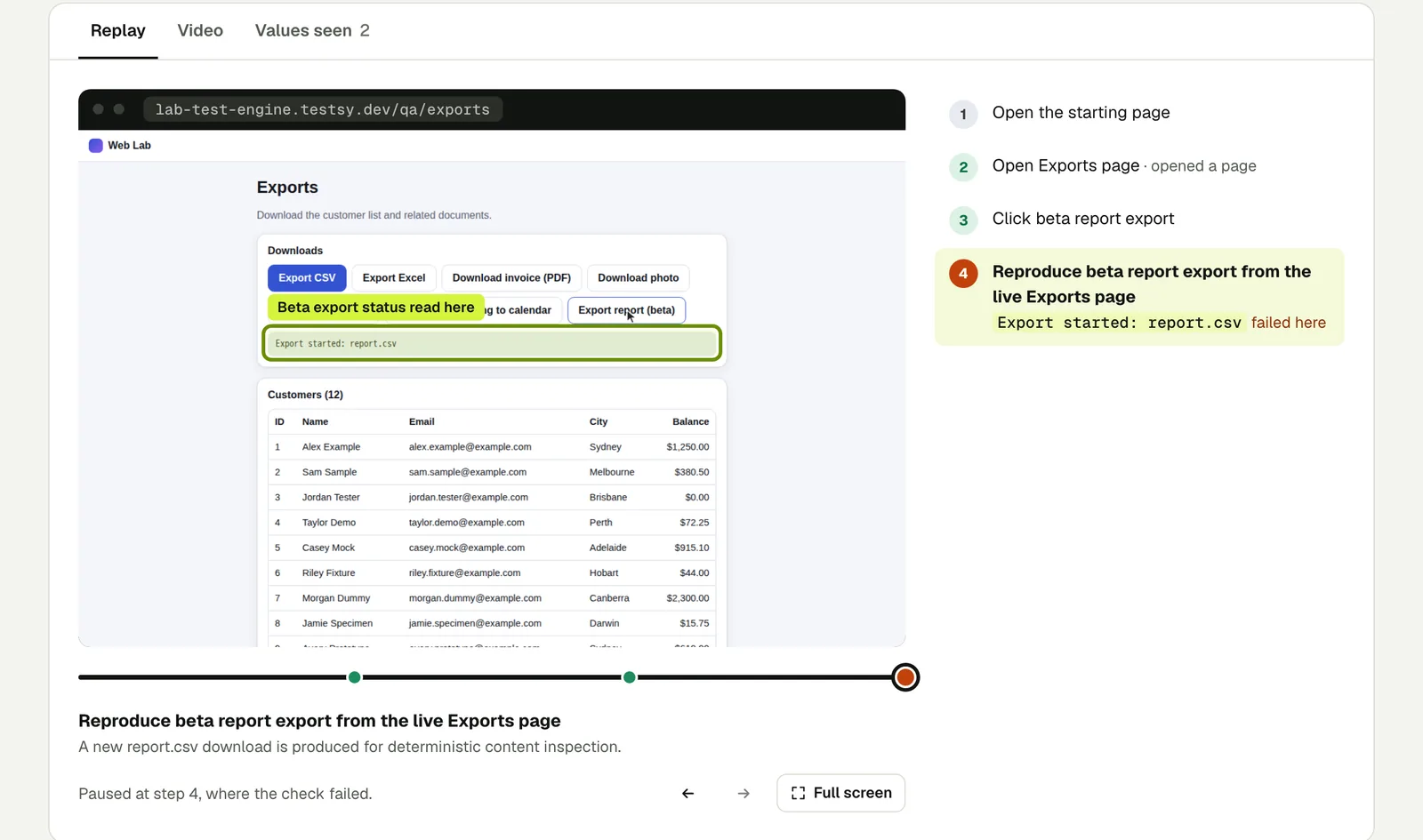
The failed check says exactly what was wrong: the saved report.csv was 158 bytes of HTML containing "500 Internal Server Error" and "The report service failed", not a CSV with customer data. That sentence, pasted into an agent, points it at the report service and the content of the file, not at the button. Open the run (live until 18 February 2027).
Where to find it#
- On every result that did not pass, next to Share.
- On the test's page.
- On the home page, next to each failing website test.

For a person instead of an agent, Copy as an issue copies the same failure as Markdown for your tracker: the check, expected and seen, numbered steps to reproduce, the values read and the link to the proof.
Let the agent read it itself#
An agent connected over MCP does not need the copy step. It can call get_run to read the failed check and its evidence, change the code, run_test again and wait_run for the verdict. You see each run it starts, and the test stays the same, so the agent cannot pass by changing what is being checked.
Two habits that make it work#
- Review the evidence before you paste. A Blocked or Inconclusive result is not a bug in your app: the site stopped the tester, or it could not tell. Fix the access or the test, not the code.
- Keep the original expectation. After the fix, rerun the same test. If the agent proposes changing the check, ask why.
This post is part of Testing an app you built with AI.
Filed underWebAI-built appsVerdicts and proof